Profile Picture

Special Notice: CC Unreal Auto-Setup Plugin (Beta 1.0)

Posted By Miranda (RL) 6 Years Ago
Rated 5 stars based on 1 vote.
Author
Message
Miranda (RL)
Miranda (RL)
Posted 6 Years Ago
View Quick Profile
Distinguished Member

Distinguished Member (68.7K reputation)Distinguished Member (68.7K reputation)Distinguished Member (68.7K reputation)Distinguished Member (68.7K reputation)Distinguished Member (68.7K reputation)Distinguished Member (68.7K reputation)Distinguished Member (68.7K reputation)Distinguished Member (68.7K reputation)Distinguished Member (68.7K reputation)

Group: Administrators
Last Active: 3 Years Ago
Posts: 1.8K, Visits: 11.2K
March 15th update: the Beta 2.0 plugin is released. Please find the process HERE.

Introduction

The process of bringing an animated CC character into the Unreal Engine can be tedious.  This is exacerbated by the inordinate amount of time it would take to manually assign every material property, adjust texture settings, modify animation properties, model configuration, along with other complicated manual tasks.  In response, we are providing this plugin to trim your production time by automating the aforementioned idiosyncrasies.


Process Overview
  1. Export a FBX character from Character Creator 3
  2. Download and install the Auto-Settings Plugin
  3. Import the FBX file into the Unreal Engine
  4. Export motions for the character from CC3
  5. Initialize the plugin and setup the character

Step 1 - Export a FBX character from Character Creator 3
  1. Set the preset type to Unreal
  2. Make sure to not activate Embed Textures as the plugin will automatically connect the material channels to the textures inside the export directory.
  3. Match the frame rate to Unreal's at 30 frames per second.
  4. Make sure that _OpenA_UE4 is the first motion in the list.  This is required for the plugin to perform skeleton re-targeting so that it becomes compatible with other standard character motions for CC G1 and Unreal. Please find the file from Reallusion\Template\Character Creator 3 Template\Motion\_Open A_UE4.rlMotion. 
    • Exporting sequence of motion files depends on the file name in the current CC version, so you have to rename the _OpenA_UE4.rlMotion to 0_OpenA_UE4.rlMotion to make sure A-pose will be listed as the first one. From CC v3.04 onwards, exporting sequence will be same as what you set up in Character Creator.
    • From the future version (not firmed), the A-pose will be automatically added as the first motion file when exporting motions.
https://forum.reallusion.com/uploads/images/fe4efc1f-f8e7-4bab-a4c0-b723.png


Step 2 - Download and install the auto-configuration plugin
  1. Choosing the right plugin.
    • Check the Unreal Engine version number and choose the plugin version to match.
    • Make sure to not put more than 1 plugin inside the same directory -delete any preexisting plugins.
    • Currently, only version 4.20 and 4.21 of Unreal are supported.
      https://forum.reallusion.com/uploads/images/11db6b9e-e3a5-4df8-96fe-8b2c.png
      https://forum.reallusion.com/uploads/images/26e996f7-195c-4e89-83ec-f3ca.png

  2. Download and install the plugin.
    • The download location is as follows:
    • There are two ways to install:
      1. Put the RL plugin folder inside the Plugins folder for Unreal Engine.
        https://forum.reallusion.com/uploads/images/da899578-1389-4b6c-9cf6-4f30.png

      2. Put the RL plugin folder inside the Plugins folder for the specific U.E. project (make a new folder by the same name if it doesn't already exist).
        https://forum.reallusion.com/uploads/images/a86483a7-1c13-4069-80c7-0402.png

  3. Initialize the Unreal Engine RL plugin and restart the application.
    • Open up Unreal Editor and browse the plugins list to enable the CC_Character_Auto_Settings plugin.
    • Restart the Unreal Editor after initializing the said plugin.
If the RL plugin folder is inside the Plugins folder for Unreal Engine:
https://forum.reallusion.com/uploads/images/0afd54ce-b35e-468a-860c-b99a.png

If the RL plugin folder is inside the Plugins folder for the specific U.E. project:
 https://forum.reallusion.com/uploads/images/3f838a2e-dc66-48b5-9cce-f258.png


Step 3 - Import the FBX file into the Unreal Engine
  1. Import the FBX file into the Content Browser.
    • Make sure to create a separate folder for every new character to prevent conflicts with existing assets with the same names.
    • When two assets have conflicting names, the latter one imported will be ignored.
    • Alternatively, you can drag the entire parent folder into the Content Browser.
      https://forum.reallusion.com/uploads/images/3cdc2ac8-341a-460a-87a6-aa11.png

  2. Adjust the settings for the FBX import.
    • Pay attention to the following parameters:
      • Enable Skeletal Mesh.
      • Enable Import Mesh.
      • Select None for the Skeleton drop-down list.
      • Enable T0As Ref Pose.
      • Enable Import Morph Targets.
      • Select Import Normals and Tangents for the Normal Import Method.
      • Enable Import Animations.
      • Select Animated Time for the Animation Length.
      • Enable Use Default Sample Rate.
    • Import All supports multiple FBX files.  Since we are only importing one FBX file at a time in this guide, you can use either Import or Import All.
      https://forum.reallusion.com/uploads/images/86e9af92-c085-43f8-b3cd-7b4d.png

  3. Perform Save All to commit the new content (from memory).
    https://forum.reallusion.com/uploads/images/99a880a5-54d2-4aff-b405-abf0.png

  4. Execute the RL plugin for CC auto-setup.
    • Select the skeletal mesh from the Content Browser and click on the CC Auto-Setup button.
      https://forum.reallusion.com/uploads/images/c794389b-bd31-477f-865b-5eb1.png

Step 4 - Export the motions for the character from CC3
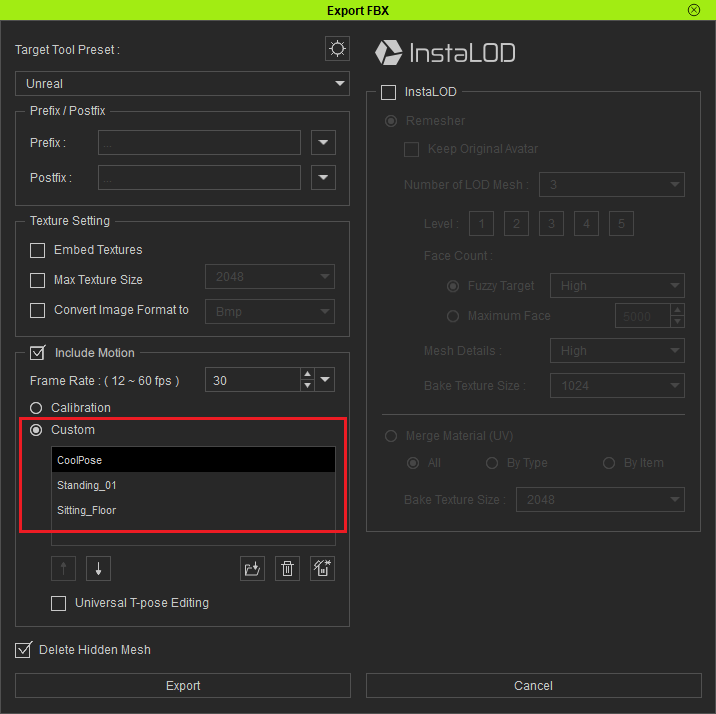
  1. If you need additional expressions or motions, you'll have to export them from Character Creator.
    • Export another FBX including as much motion as you want.
      https://forum.reallusion.com/uploads/images/1148f3ea-0555-4d52-93c1-12c1.png

  2. Use the following configuration for the Unreal Engine import settings.
    • Pay attention to the following parameters:
      • Deactivate Import Mesh.
      • Set the Skeleton to use the one from the previously imported CC character.
      • Select Animated Time for the Animation Length.
      • Enable Use Default Sample Rate.
https://forum.reallusion.com/uploads/images/e3416fbe-959d-428b-a190-e168.png


Step 5 - Initialize the plugin and setup the character
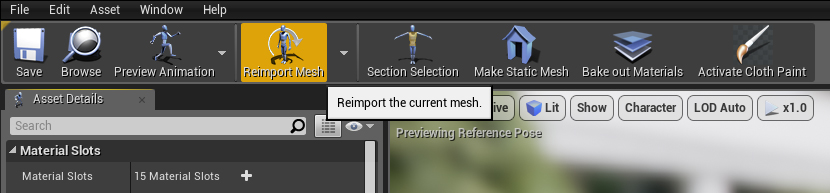
  1. You can fix the disappearance of morph data by opening up the Content Browser, selecting the skeleton mesh, and click on the Reimport the current mesh button.
    https://forum.reallusion.com/uploads/images/6548c07d-707e-48c1-99d9-65fd.jpg

  2. Currently there is not way to intelligibly assign the Blend Mode: Masked or Translucent. Therefore we recommend setting everything besides the eyelashes to Masked and only use Translucent for semi-transparent surfaces. https://forum.reallusion.com/uploads/images/c24878ca-abf9-4900-868b-a2d3.png
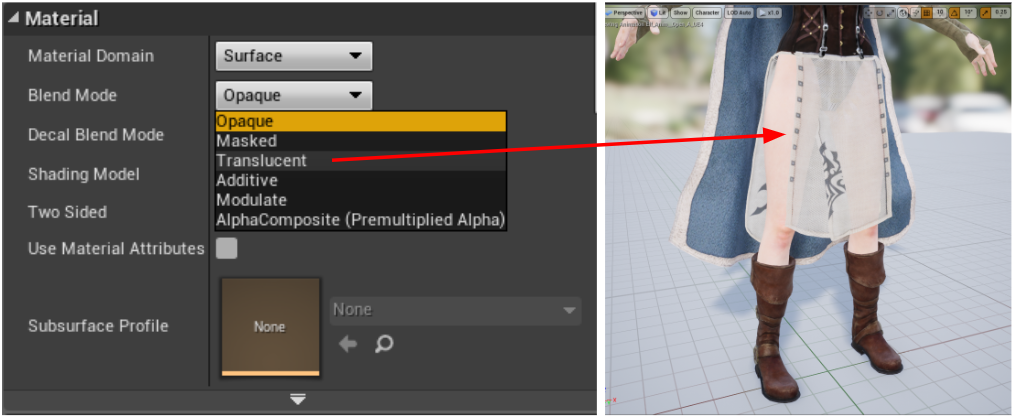
    See this tutorial for more details: https://youtu.be/ZSBrR8L2lsA?t=565

Plugin & Tutorial

To download the Auto-Settings Plugin, and learn more details from step-by-step training videos, please visit >>

Important Considerations
  1. There is only full support for Character Creator 3 G1 and G3 characters with FBX being the primary format of exchange.
  2. Characters and motions should all be exported from Character Creator.  Be aware that characters processed directly from iClone or 3DXchange may need some manual re-assignments for motion re-targeting.
  3. Please process only one character at a time (including LOD), otherwise you may experience unexpected results.  For example, exporting multiple characters can lead to conflicts with identical texture names.
  4. Make sure to organize different characters into separate folders in Unreal Engine, otherwise there could be conflicts between the various assets with identical names.
  5. Avoid using reserved key words that are crucial for the plugin's proper operation.  These include the following: diffuse - ao - normal - metallic - roughness - glow - specular - transparency - hair - eyelash - ga_skin_body - skin - loop - LOD0~N - displacement - pbr - tra - opacity.
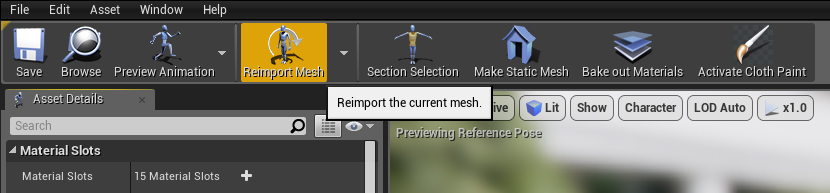
  6. You can fix the disappearance of morph data by opening up the Content Browser, selecting the skeleton mesh, and click on the Reimport the current mesh button.
    https://forum.reallusion.com/uploads/images/67b1f944-1e04-4d75-a7b8-cd81.jpg

  7. Unreal Engine's PBR shader does not support CC's blend channel.
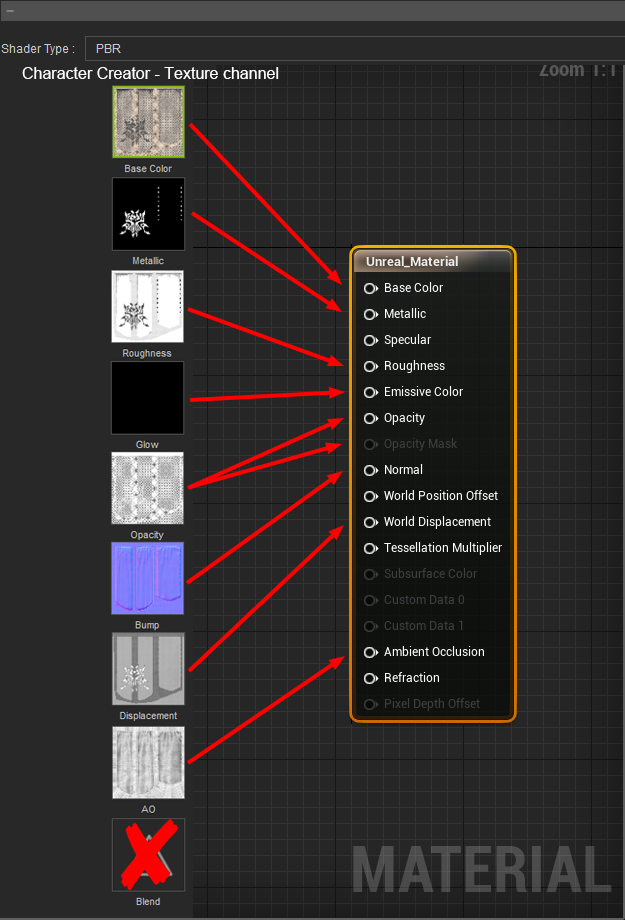
    https://forum.reallusion.com/uploads/images/f7c0aa24-5f23-445e-8625-7362.jpg

  8. Unreal Engine's traditional shader does not support CC's blend and reflection channel.
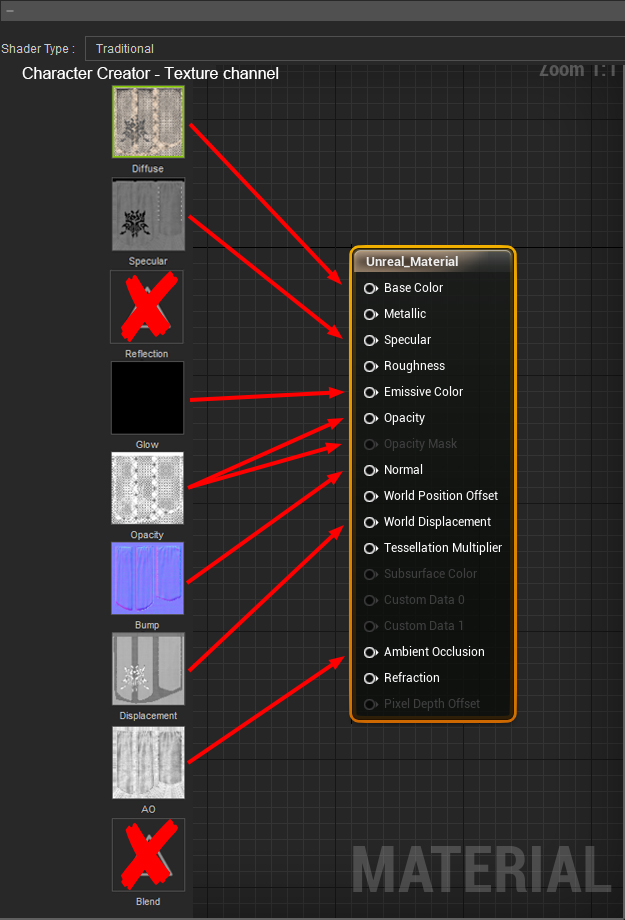
    https://forum.reallusion.com/uploads/images/fbadbdbc-d338-498a-8e41-1da5.jpg


Threaded View

Threaded View
Forum Post Special Notice: CC Unreal Auto-Setup Plugin (Beta 1.0) By Miranda (RL) ( 6 Years Ago )
Forum Post Awesome work! This will really cut down time. It's great to have these... By Werepug5005 ( 6 Years Ago )
Forum Post Thank you Werepug5005! We'd like to collect as many feedback as... By Miranda (RL) ( 6 Years Ago )
Forum Post Thanks for this tutorial, However I have an issue while trying to... By hankerspacepro ( 6 Years Ago )
Forum Post [quote][b]hankerspacepro (1/18/2019)[/b][hr]Thanks for this tutorial,... By Miranda (RL) ( 6 Years Ago )
Forum Post Hello. Sorry, it may seem silly but I can not find the file... By emypippo ( 6 Years Ago )
Forum Post [quote][b]emypippo (1/18/2019)[/b][hr]Hello. Sorry, it may seem silly... By Renaissance Man Studios ( 6 Years Ago )
Forum Post Hi, there is a problem with c++ projects, due to missing sources for... By michael_85_10 ( 6 Years Ago )
Forum Post [quote][b]michael_85_10 (1/19/2019)[/b][hr]Hi, there is a problem with... By Miranda (RL) ( 6 Years Ago )
Forum Post 1. Create character and export it (with Unreal pose) 2. Import it in... By hankerspacepro ( 6 Years Ago )
Forum Post Hi hankerspacepro, May we know if you did some changes on the bone... By Miranda (RL) ( 6 Years Ago )
Forum Post We have to map all bones by hand. Right after the plugin execution,... By hankerspacepro ( 6 Years Ago )
Forum Post [quote][b]hankerspacepro (1/23/2019)[/b][hr]We have to map all bones... By Miranda (RL) ( 6 Years Ago )
Forum Post Hello, Thanks for the fix, the issue was this prefix. We removed it... By hankerspacepro ( 6 Years Ago )
Forum Post Very helpful, wasnt aware that there is that extra A Pose available... By unit23 ( 6 Years Ago )


Reading This Topic