Hi, folks,
It's your friendly neighborhood Martok2112 (call me Steve if you wish) with another tutorial for beginners, and for those looking to economize a bit in their animations.
Alright, class, ATTEND. (You, Jimmy, in the back...pay heed!) :)
Ok, today, dear childroon, we discuss animating characters along a path. Today's lesson will be the first of a couple of different ways to deal with path character movement. So, let's turn in our textbooks to page one. (Joseph, put away that -- is THAT a porno mag?!...and you didn't bring enough to share?! We shall talk later, young sir. In the meantime, I'm sure you'll get your kicks out of this lesson.)
The purpose of this class is not only to give newcomers to iClone a nice little beginners' animation tutorial, but also to cover some problems that even some more advanced users have had with getting character path animations to work, as well as the problem some folks have with placing multiple animations together, and ending up with different character starting positions for each animation.
For the example I have today, I have decided to do a slight recreation of the (soon to be famous) car wash scene from the upcoming comedy "Bad Teacher" starring Cameron Diaz. I say slight because certain elements of this reproduction are not accurate.
Now, the first thing to think of when it comes to avatar/characters is to think of them as (Thomas, what are you doing?! Do not think of her THAT way. She is a willing participant in this very vital demonstration, not an object to be oogled. Well....ok...yes, she is very hot, but....ach, that is beside the point, now pay attention!)...ahem...think of them as "action figures" of a sort. (Yes, Gerald, like your little G.I. Joes or Star Wars figures.) In addition to creating clothing for them, you can also give them props to be a permanent part of their loadout. For the "Bad Teacher" avatar, we'll call her Elizabeth Halsey, since that is the character's name in the upcoming film, she has two sponges and a water hose. You can store the avatar with their accessories so they can be activated/deactivated as needed for your upcoming scenes. Elizabeth also has some "BLEND" overlays which will give her a wetlook appearance, but we're not worried about that right now.
Let's look at Fig. 001

For this shot, Elizabeth will only need one sponge in her left hand, and the water hose in the right hand, so, let's activate them, and deactivate the right hand sponge. Now the next thing we wish to do is lay out a path around the truck for her to traverse. So, create the path, and edit as necessary. Done? Done.
Right, onto figure 002
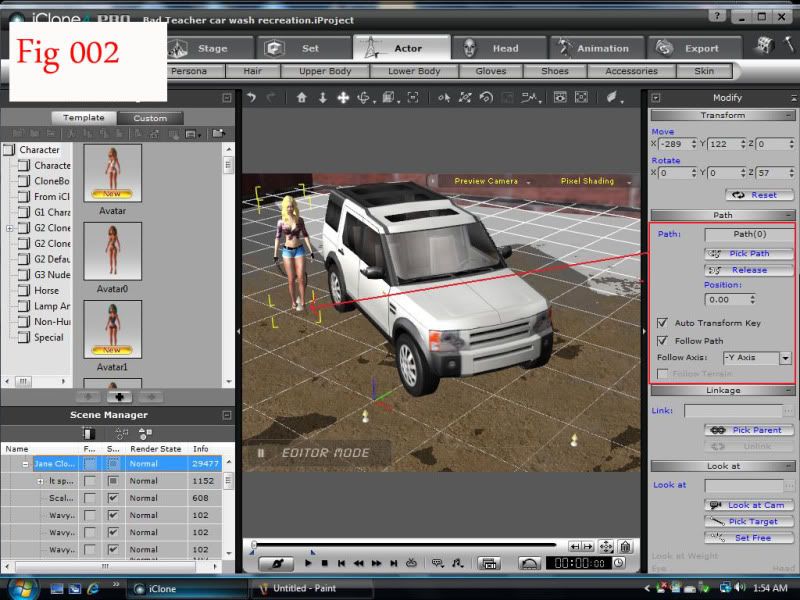
At the first frame of the soon to be made animation, place Elizabeth (make sure she is highlighted) at the start of the path, by clicking PICK PATH, and then moving the cursor to the first path point...the point of origin that you'd set down when creating your path. Since we are dealing with simple, flat terrain, you can set the "FOLLOW PATH" button in the PATH animation box. This will allow Elizabeth to track properly in her facing as she traverses the path.
"Incompetence will always prevail so long as evil men stand by and do nothing."
-Martok2112