Daz hair is often tricky and requires different import and export tweaks, depending on the particular mesh setup. After some experimentation, I found that there's actually a way around the error with "afro" styled hair. When you import your figure, follow these steps and let me know if this works for you.
Be sure to check ADVANCED when bringing your character in.
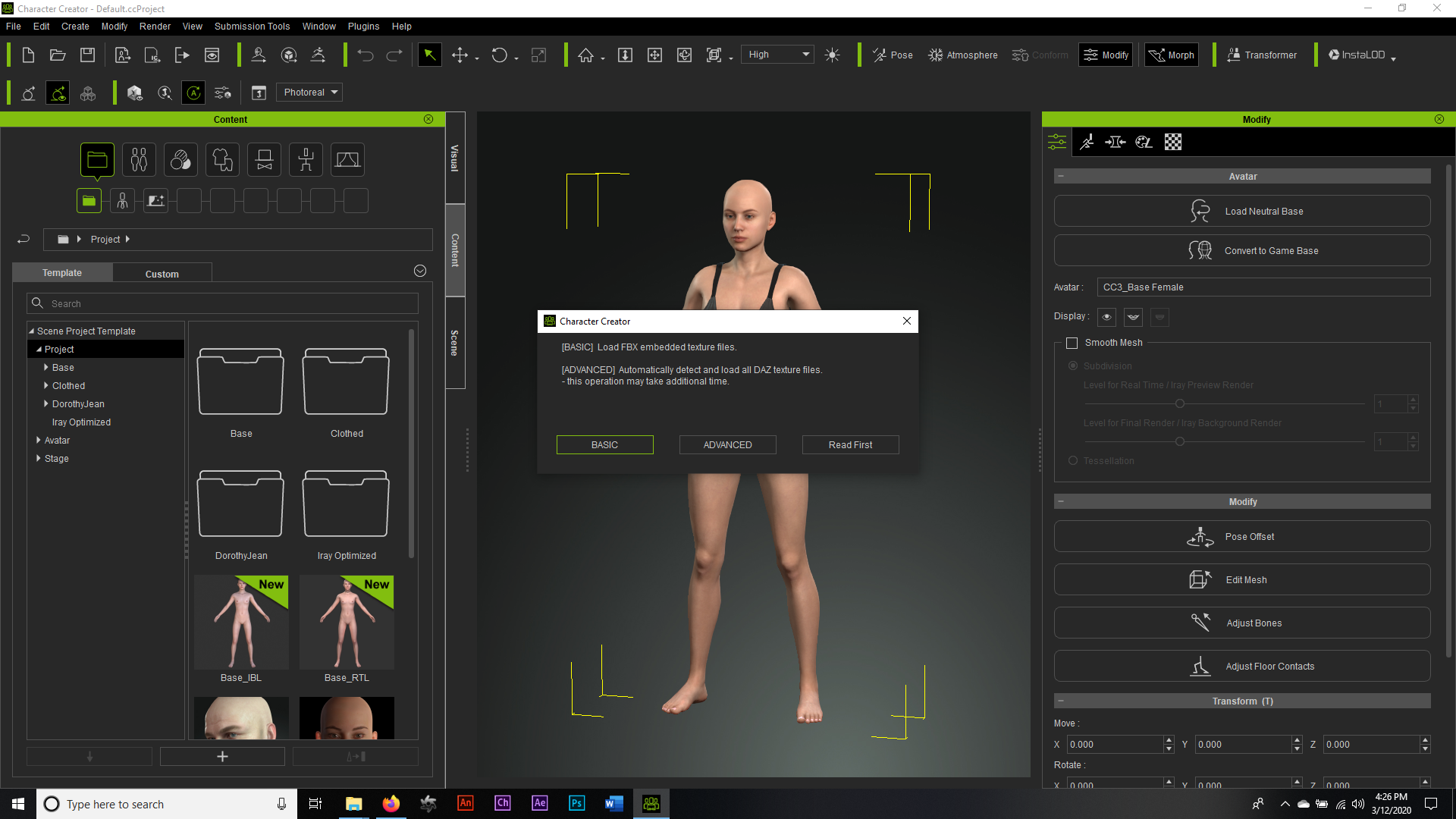
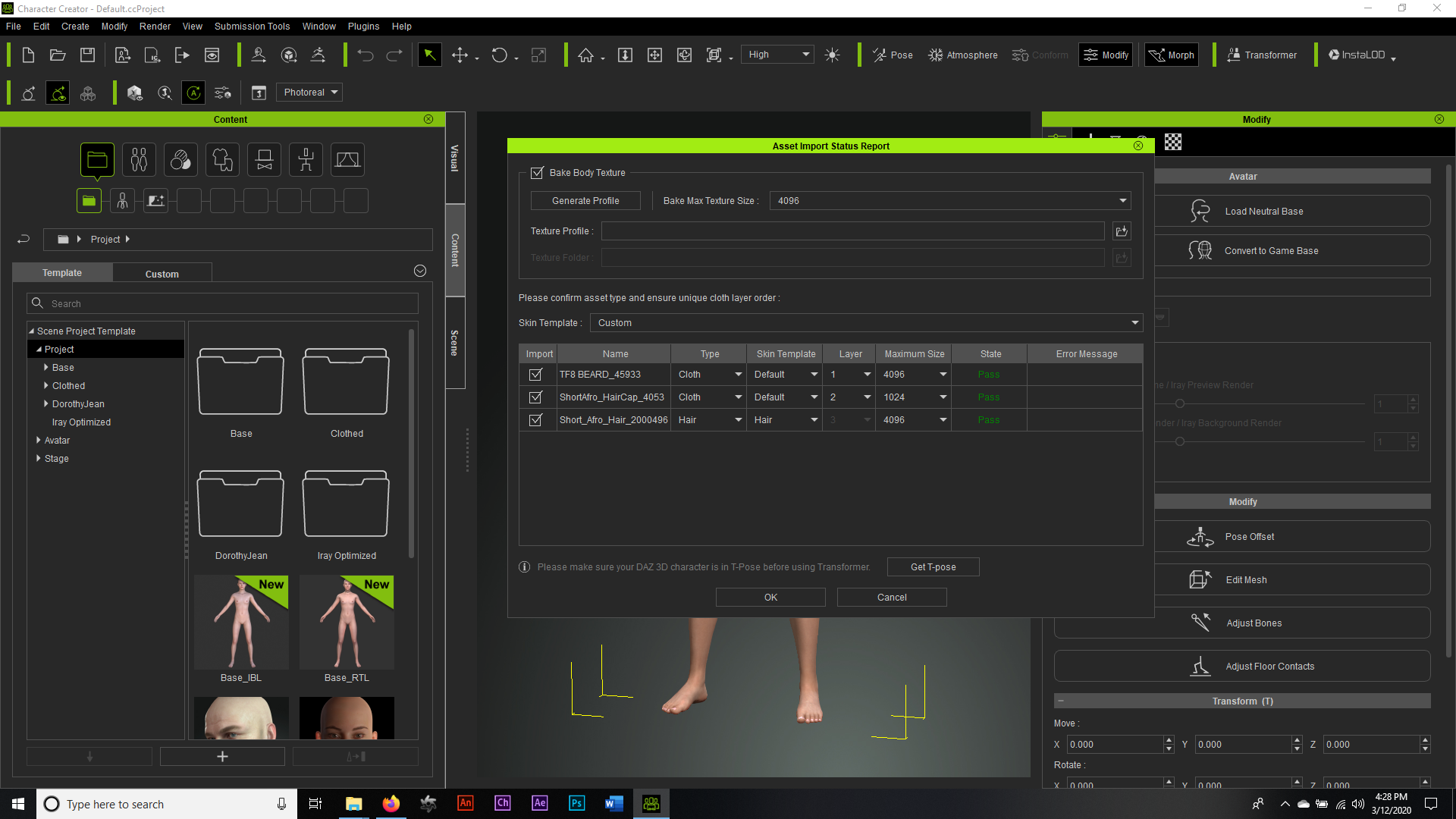
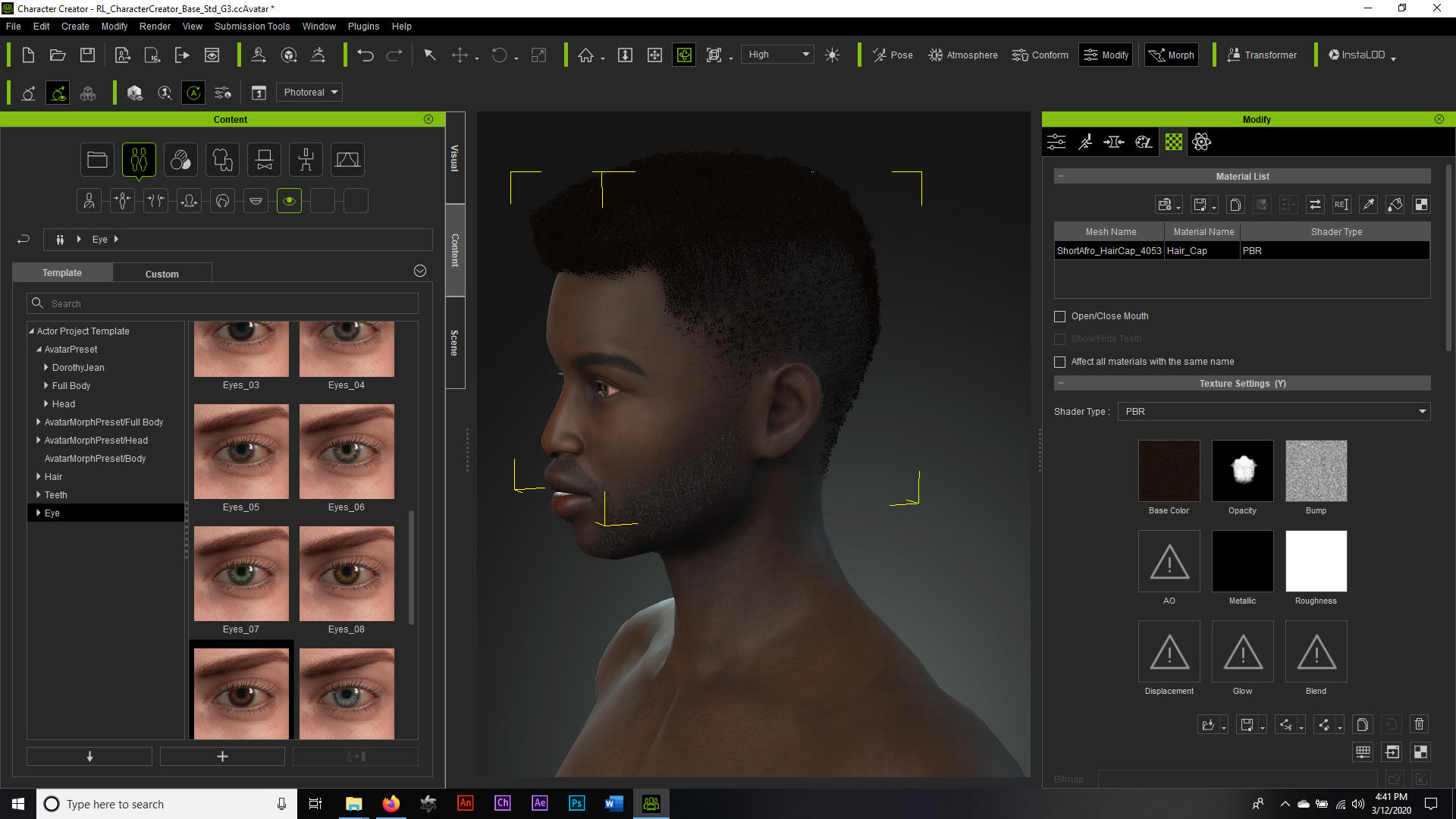
Then be sure to leave your cap as CLOTH, but change your hair itself to HAIR. I personally always change highly detailed meshed to either 2K or 4K in size as well, but that's a matter of personal preference.
Now you'll notice an unnecessary amount of "sheen" on both the cap and the hair itself. That's because the original modeler made this mesh with rendering in DAZ in mind, not Reallusion, but it's a relatively easy fix.
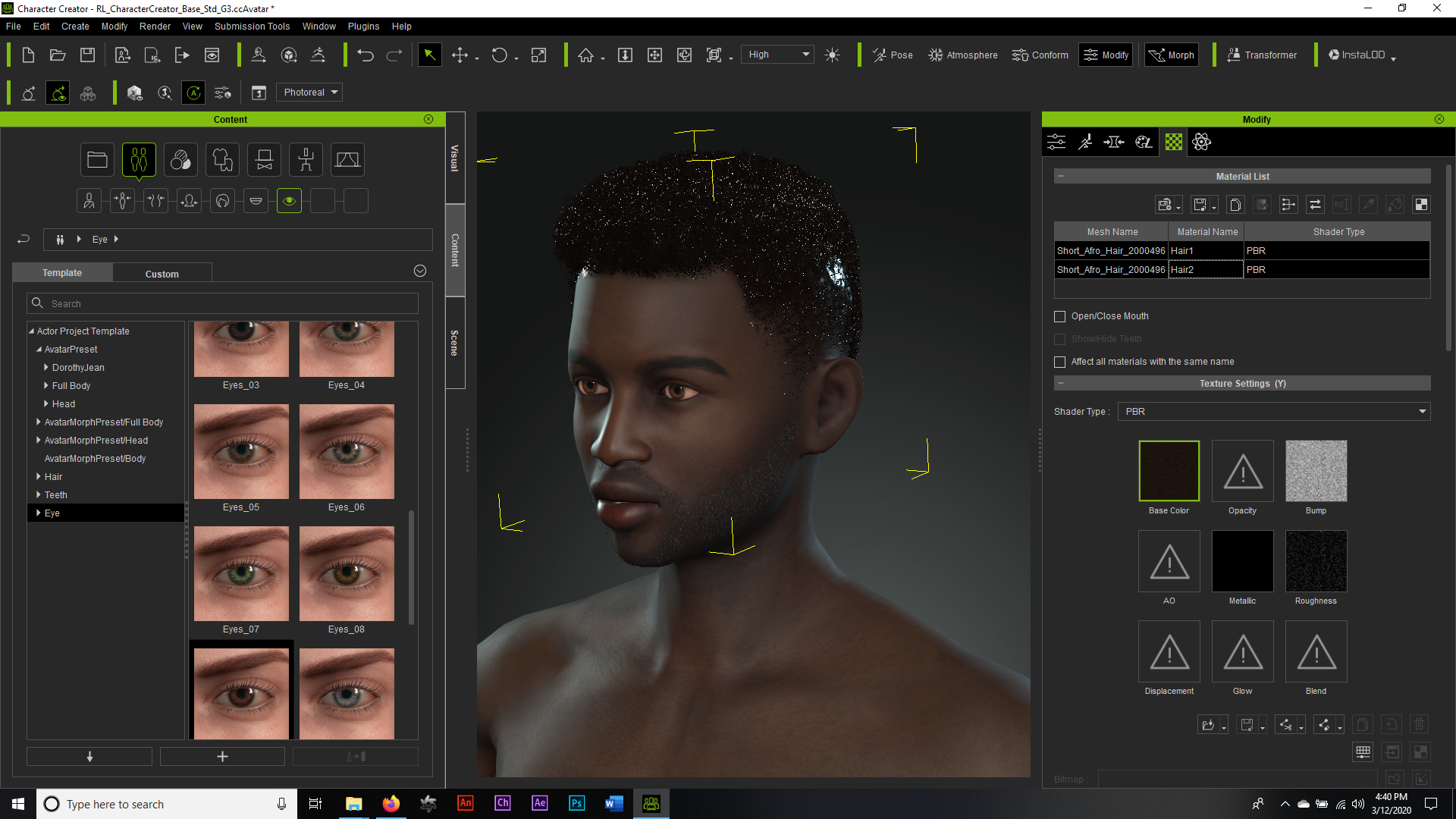
First, you select the cap, go to the materials, select roughness, open your color adjust and then push your roughness slider all the way to the right until it maxes out white. This will remove the shine from the scalp that will show through on any renders.
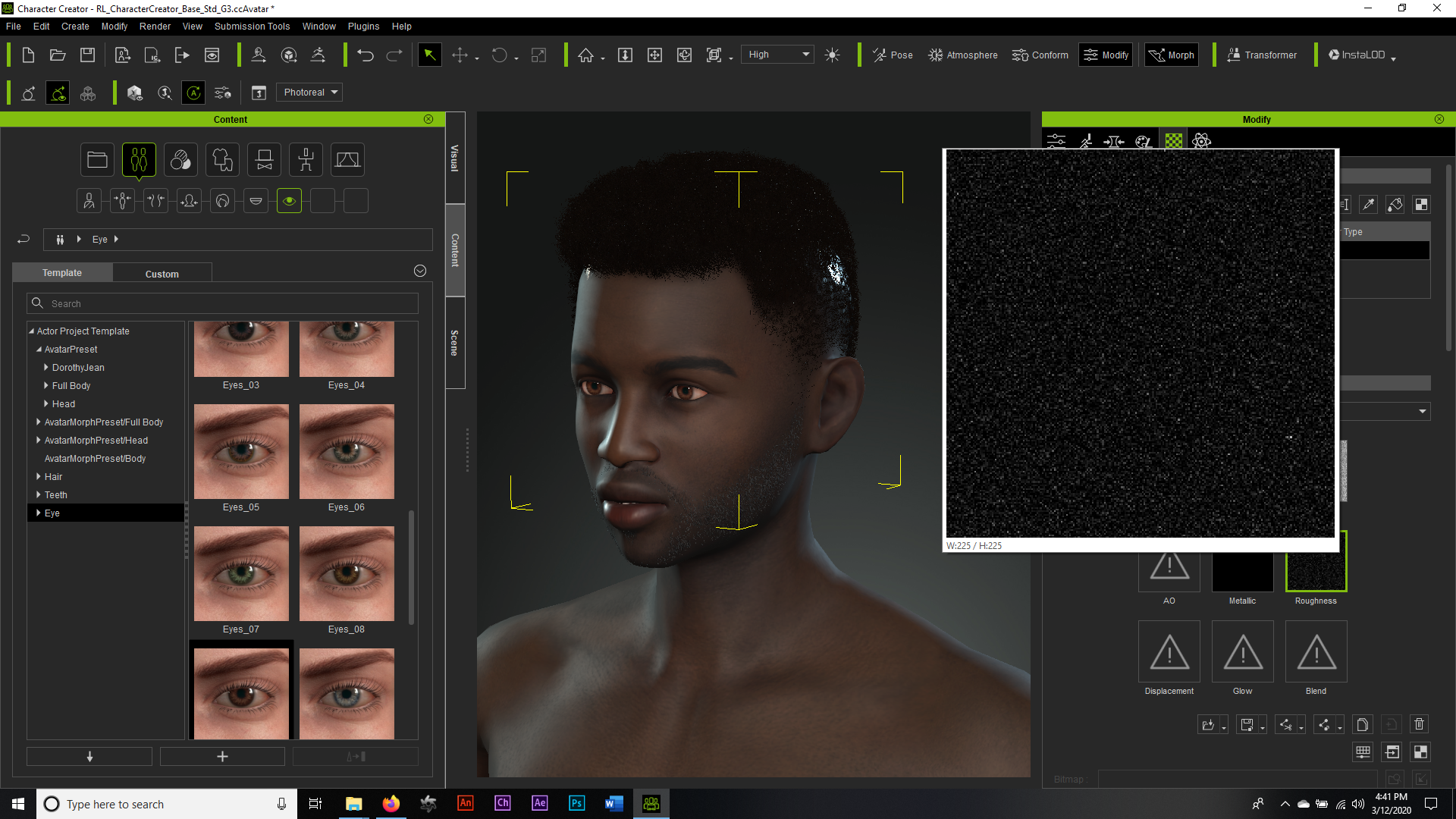
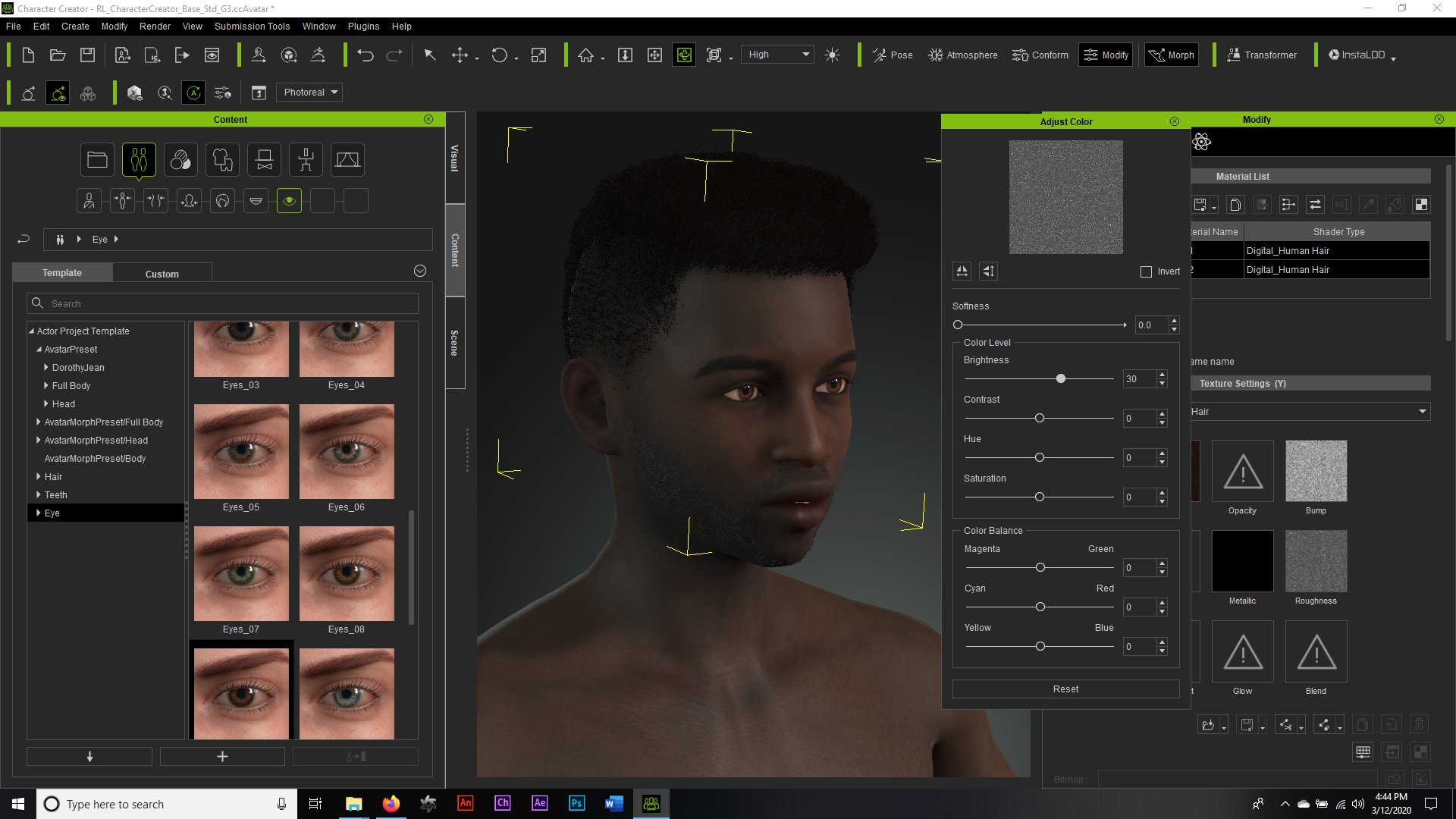
Next, what I like to do is select the hair mesh itself, go to materials and be sure to hit control and select both hair materials, then open your color adjust and up the roughness to about 30, otherwise your afro will render with more of a "Soul-Glo". Jheri Curl look, and since this isn't the early 1980's... just no, lol.
Now, you go ahead and switch all of your hair, skins, eyes and teeth to DHS, hit your render and you should be right as rain.
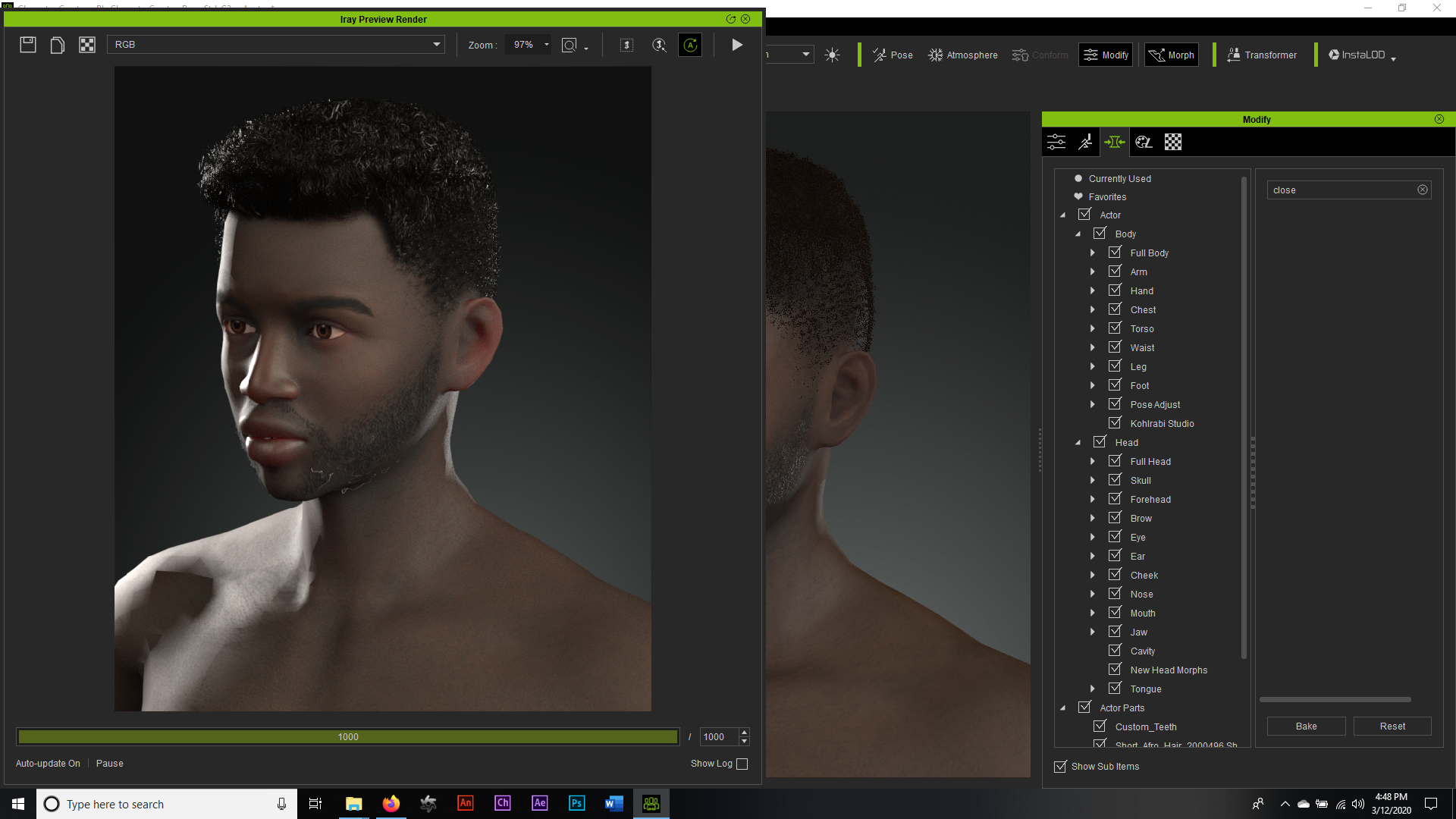
Hopefully this helps.
artstation.com/dreadmoormediaarts