How to Set Up an Independent GPU Mode for Your Notebook If you are using a Notebook computer to run iClone 5 or iClone 6 then make sure that you follow this procedure to run your Independent GPU and VRAM with iClone, instead of the default Intel Graphics System.
For AMD
http://driversnest.com/guides/make-best-settings-to-run-new-games-on-your-notebook-guide/set-up-your-ati-amd-radeon-notebook-for-gaming-best-performance.html
For Nvidia
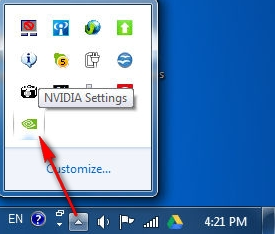
First find your NVIDIA setup program from the system tray
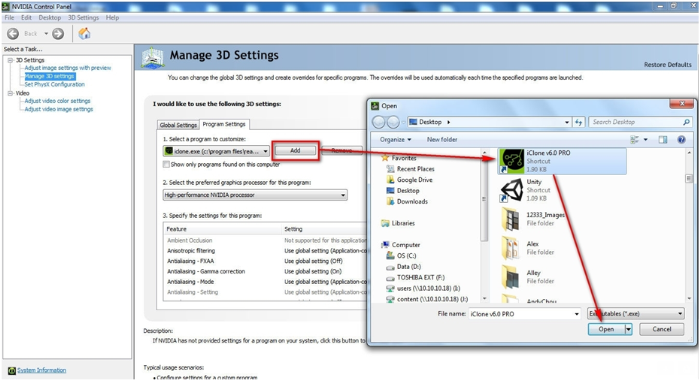
Go to 3D Settings - Manage 3D Settings, and select “Program Settings” tab
- Step 1, Add iClone 6 as your target program
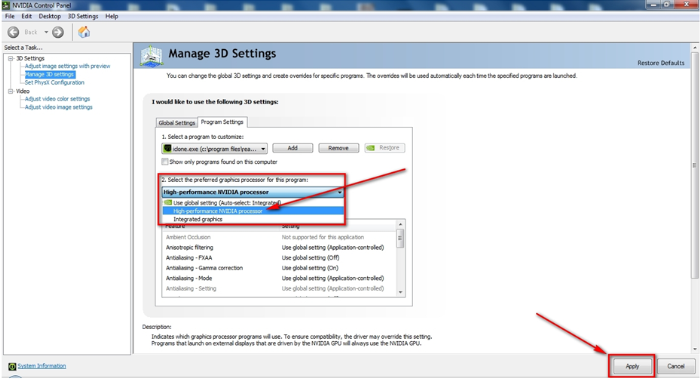
- Step 2, choose “High Performance NVIDIA Processor” , and click the Apply button.
Now you are done with the most important setting. In the last step, please make sure that you plug in your AC adapter, and change your battery mode to “Performance” or “Entertainment” or the highest performance mode for the best real-time experience.
More iClone 6 tech solutions
https://forum.reallusion.com/Topic212528-386-1.aspx
Regards
Reallusion, Inc.
______________________________________________________
Visconti
Forum Moderator
Reallusion, Inc.
https://forum.reallusion.com