|
Author
|
Message
|
|
barrysampson
|
barrysampson
Posted 8 Years Ago
|
|
Group: Forum Members
Last Active: 2 Years Ago
Posts: 38,
Visits: 359
|
Hi, I'm trying to export my animation with a transparent background for further work in AE. No matter how I try to do this, or what settings I choose I can't seem to get decent quality results. I've tried exporting as ProRes 4444 and as a PNG sequence and in both cases I get jaggy edges and/or fringing. I've also tried the green background approach and exported ProRes 422 but that leaves a green fringe around the characters after keying. I've tried anti alias on and anti alias off. I've tried Super Sampling on and Supers Sampling off. I've tested this using the built in G3 characters and I get the same fringing. I'm running CTA v 3.3 on a 2018 MacBook Pro i9 2.9GHz, 32GB with a Radeon Pro 560X. I also tried the PNG sequence export on a 2015 Surface Book running the latest Windows 10 - same result. I've read every thread I can find on here on this topic and I've watched the YouTube video by Ibis Fernandez on this topic. I'm sure I'm doing what I'm supposed to - but am I doing something wrong or can CTA just not export very well with a transparent background? Here's a transparent frame from a PNG export: 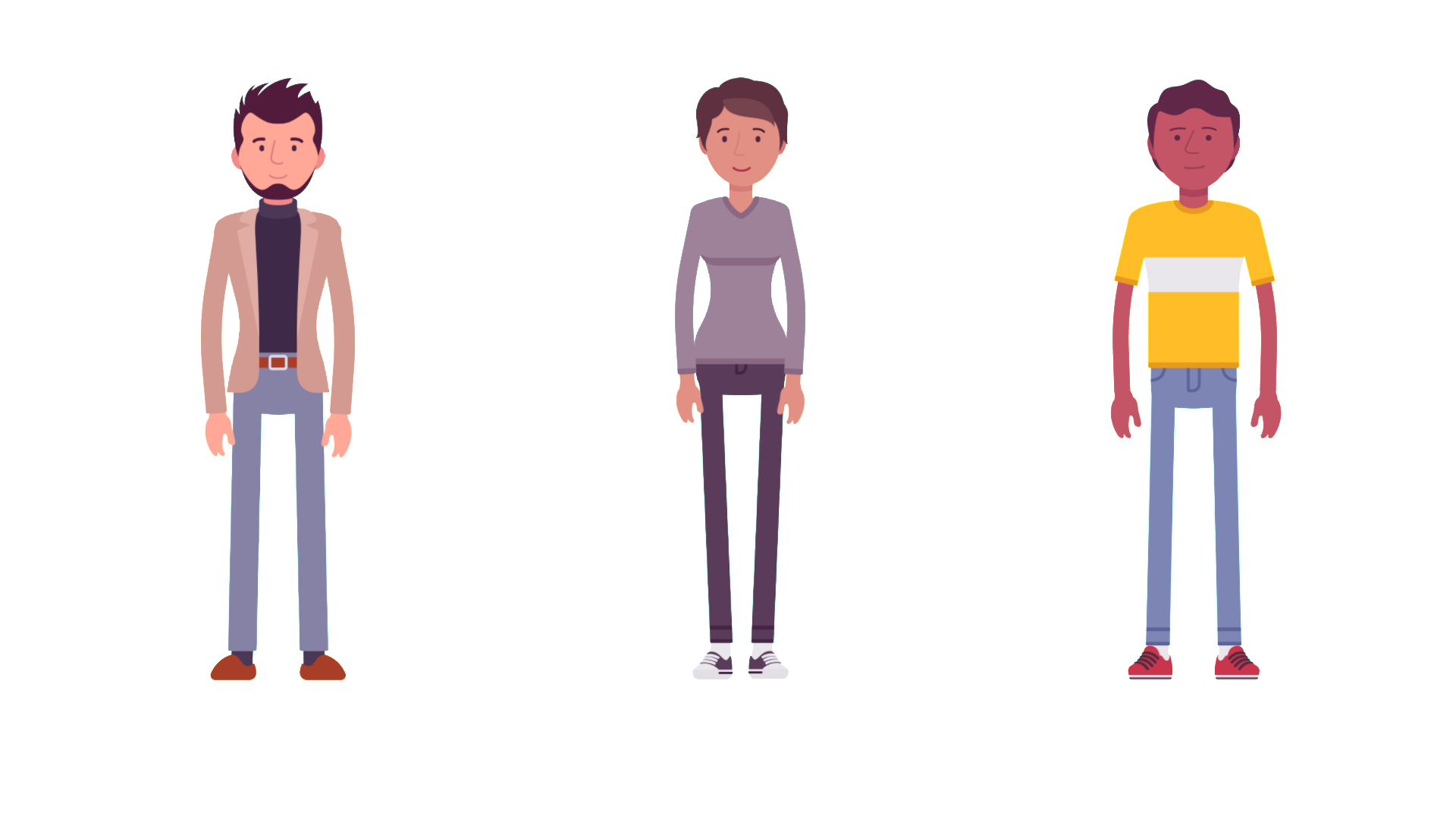 Here's the same frame with a dark background added, which shows off the fringing even more.  Any help would be much appreciated. Barry
|
|
|
|
|
Peter (RL)
|
Peter (RL)
Posted 8 Years Ago
|
|
Group: Administrators
Last Active: 2 Years Ago
Posts: 23.1K,
Visits: 36.6K
|
Hi Barry Have you tried doing the same test using one of the characters that come with CTA3 such as the Elastic Folks Male or Female? This will help check if the issue is with the characters you are using or a general issue when rendering. In my own tests I don't get that same effect with the Elastic Folks characters. Do also try opening Preferences and make sure your "Max Real-time Map Size" is set to say 2048 x 2048 and "Real-time Vector Render Quality" setting is HIGH. Then try to render to PNG again. Does this help?
Peter
Forum Administrator www.reallusion.com
|
|
|
|
|
barrysampson
|
barrysampson
Posted 8 Years Ago
|
|
Group: Forum Members
Last Active: 2 Years Ago
Posts: 38,
Visits: 359
|
HI Peter,
Yes, I get the same issue with any of the G3 characters that come with CTA.
Thanks for the advice. I don’t think I’ve ever changed those settings, so I guess they’re set to whatever the default is. I can’t check at the moment - I’m sat at an airport and won’t be back in front of my laptop until Wednesday. I’ll try it then.
Many thanks
Barry
|
|
|
|
|
kylelee
|
kylelee
Posted 8 Years Ago
|
|
Group: Forum Members
Last Active: 4 Years Ago
Posts: 462,
Visits: 4.2K
|
Hi This is my suggestion, This issue has a workaround to solve that is changing the background to the dark color in project settings. This is my testing to export the video. 
|
|
|
|
|
barrysampson
|
barrysampson
Posted 8 Years Ago
|
|
Group: Forum Members
Last Active: 2 Years Ago
Posts: 38,
Visits: 359
|
Thank you Peter and kyelee for your suggestions.
I tried changing Max Real-time Map Size to 2048x2048 and 4096x4096 and in both cases I didn't see any difference.
I then tried changing the background colour to black and that definitely reduced the white fringing, but it was still visible particularly on the darker areas of the characters. This might be workable depending on the background we're using in AE.
The best solution for me though was to change the background colour to black, export the image sequence at 4K and then scale it down by 50% in AE. If I do that there is no visible fringing. That's definitely a workable solution for me.
Barry
|
|
|
|
|
Edward (RL)
|
Edward (RL)
Posted 8 Years Ago
|
|
Group: Forum Members
Last Active: 5 days ago
Posts: 301,
Visits: 4.9K
|
Hello, Glad to share my testing, it looks very well in Adobe After Effects (AE), and I think it should be work on other tools. My step is: 1. Set the background color as black in CTA Project Settings. 2. Export png file and load into AE. 3. Set as Straight (Unmatted) in the alpha settings of Interpret Footage to the png track. Adobe uses this name "Straight (Unmatted)", you can also find it on Photoshop or Premiere. But in other tools may call as Non-Premultiplied or Unassociated Alpha. 4. Done, and get the perfect transparent edge to the png.
Please ref images below Step1.  Step3. 
|
|
|
|
|
barrysampson
|
barrysampson
Posted 8 Years Ago
|
|
Group: Forum Members
Last Active: 2 Years Ago
Posts: 38,
Visits: 359
|
Hi edh, Thanks for sharing your testing. I was already using Straight (Unmatted) when importing my PNG sequence and the fringing is still there. Using CTA the only way I can get rid of it is to export at 4K and the scale down by 50% which makes it pretty much invisible. It slows things down, but it is an acceptable workaround for me. I just did a little experiment. Here is one of the G3 characters exported from CTA in a PNG sequence and then imported into AE. The export was done at 1920x1080, the AE comp is the same size and the import is set to use Straight (Unmatted). Note that the fringing around the feet is quite visible. When you zoom on to 400% you can see it really clearly. 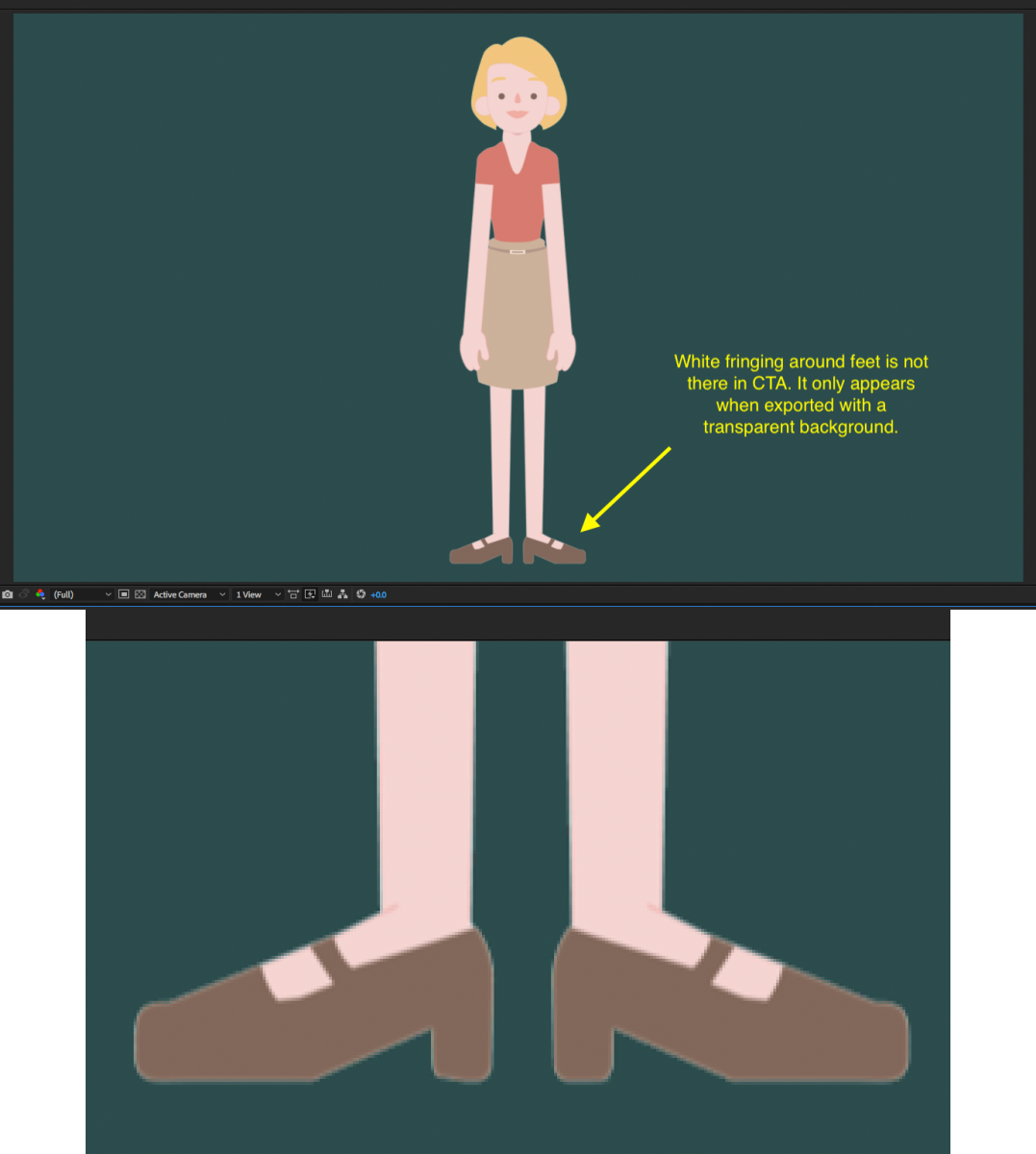 I took the same G3 character and exported it as a PSD. I made no changes to the PSD other than to delete the bone label layers and then imported the PSD file into Moho 12 as separate layers (which is how I would go about rigging a PSD character in Moho). I then exported a short clip as a PNG sequence at 1920x1080 and imported it into the same AE comp with the same settings. Note the absence of the visible fringing.  Here are the two PNG sequences next to each other in the same AE comp. For me the difference is obvious. (I'm not trying to turn this into a comparison of CTA and Moho - they're different tools that do different things and ultimately I want both of them in my toolbox). I think this does show that there are issues with the quality of the PNG export that I'm getting from CTA.
I notice in the image in kyelee's post that there is no visible fringing, so there is something different between those results and mine too.  Thanks Barry
|
|
|
|
|
Edward (RL)
|
Edward (RL)
Posted 8 Years Ago
|
|
Group: Forum Members
Last Active: 5 days ago
Posts: 301,
Visits: 4.9K
|
Hi, Did you set the project background as black, it seems only enable the non-premultiplied rendering by this way. Take look my test image.  
|
|
|
|
|
barrysampson
|
barrysampson
Posted 8 Years Ago
|
|
Group: Forum Members
Last Active: 2 Years Ago
Posts: 38,
Visits: 359
|
Hi edh,
Yes I did set the background to black (sorry, I should have said that in my previous post). I'm encouraged by the fact that other people don't seem to have the issue, but frustrated that I do!
Thanks
Barry
|
|
|
|
|
rolandhere
|
rolandhere
Posted 8 Years Ago
|
|
Group: Forum Members
Last Active: Last Year
Posts: 15,
Visits: 41
|
Hey Barry. I have that issue with a transparent QT animation. In this case, I was able to cheat by rendering it on a similar color background. This is on a Mac and after that animation clip had been first exported as Quicktime in CTA3 and then "converted" by my Mac's default QT player. After that, whenever I imported the file, it had those white fringes on it. Ugh.
I'm not sure what my solution will ultimately be with other tr. animations, but I'm glad to see that someone else at a professional level - who knows his software/workflow - is experiencing a similar issue. I think some of the more fly-by-night amateurs who buy the CTA3 program may just let this pass because they either don't really know or care about the end quality — especially if it's just for kicks.
There is definitely something going on with the interaction between graphic/vid. elements, CTA3 and Macs in regard to this white fringing effect. I can confirm that here as well.
Mac Pro - Sierra - CTA3 Pipeline.
|
|
|
|