To be specific, the title should say at given frames. So it starts on one and changes to another at frame x.
Someone asked this question about how to animate a plane's texture, meaning change the image at frame x and at frame y use another image in the forum, and I volunteered I thought this could be useful for a "slide show" creator or a dance floor that changes with the music, etc.
After I started building it I realized I don't see a way.
I looked through all my python scripts and read the documentation here:
https://wiki.reallusion.com/IC_Python_API:RLPy_RIMaterialComponent#AddDiffuseKey_.28_self.2C_kKey.2C_strMeshName.2C_strMaterialName.2C_kColor_.29The closest I have is to set the glow channel at a given frame, the AddTextureWeightKey lets you change the weight (strength) of the channel, but not the image itself
material_component = prop.GetMaterialComponent()
mesh_list = prop.GetMeshNames()
mesh_name = mesh_list[0]
material_list = material_component.GetMaterialNames(mesh_name)
material_name = material_list[0]
#Load image to material channel
texture_channel = RLPy.EMaterialTextureChannel_Diffuse
# apply the material
result = material_component.LoadImageToTexture(mesh_name, material_name, texture_channel, materialPath)
key = RLPy.RKey()
key.SetTime(FrameTime)
diffuse_weight = 1
material_component.AddTextureWeightKey(key, mesh_name, material_name, texture_channel, diffuse_weight)
The closest I found was this, which lets you change a color at a given frame. Is there a way to do this to change an image at a given frame?
This is for an avatar, but most of this works the same for props.
avatar_list = RLPy.RScene.GetAvatars()
avatar = avatar_list[0]
material_component = avatar.GetMaterialComponent()
mesh_list = avatar.GetMeshNames()
mesh_name = mesh_list[0]
material_list = material_component.GetMaterialNames(mesh_name)
material_name = material_list[0]
# Create a key
key = RLPy.RKey()
key.SetTime(RLPy.RTime(1200))
# Add a diffuse key value
material_component.AddDiffuseKey(key, mesh_name, material_name, RLPy.RRgb.RED)
I thought of a couple of work arounds if it isn't possible.
1. As Gerry suggested, create duplicate planes, and hide / show at certain frames.
2. Set the first texture, render each clip via Python (which I read about but never tried) and change the texture and render again, repeat.
I like Option 1 better because I know how to do it (I think), and for the WYSIWYG value (IClone will be updated in design mode with option 1).
Thanks if anyone knows a way or has a better workaround.
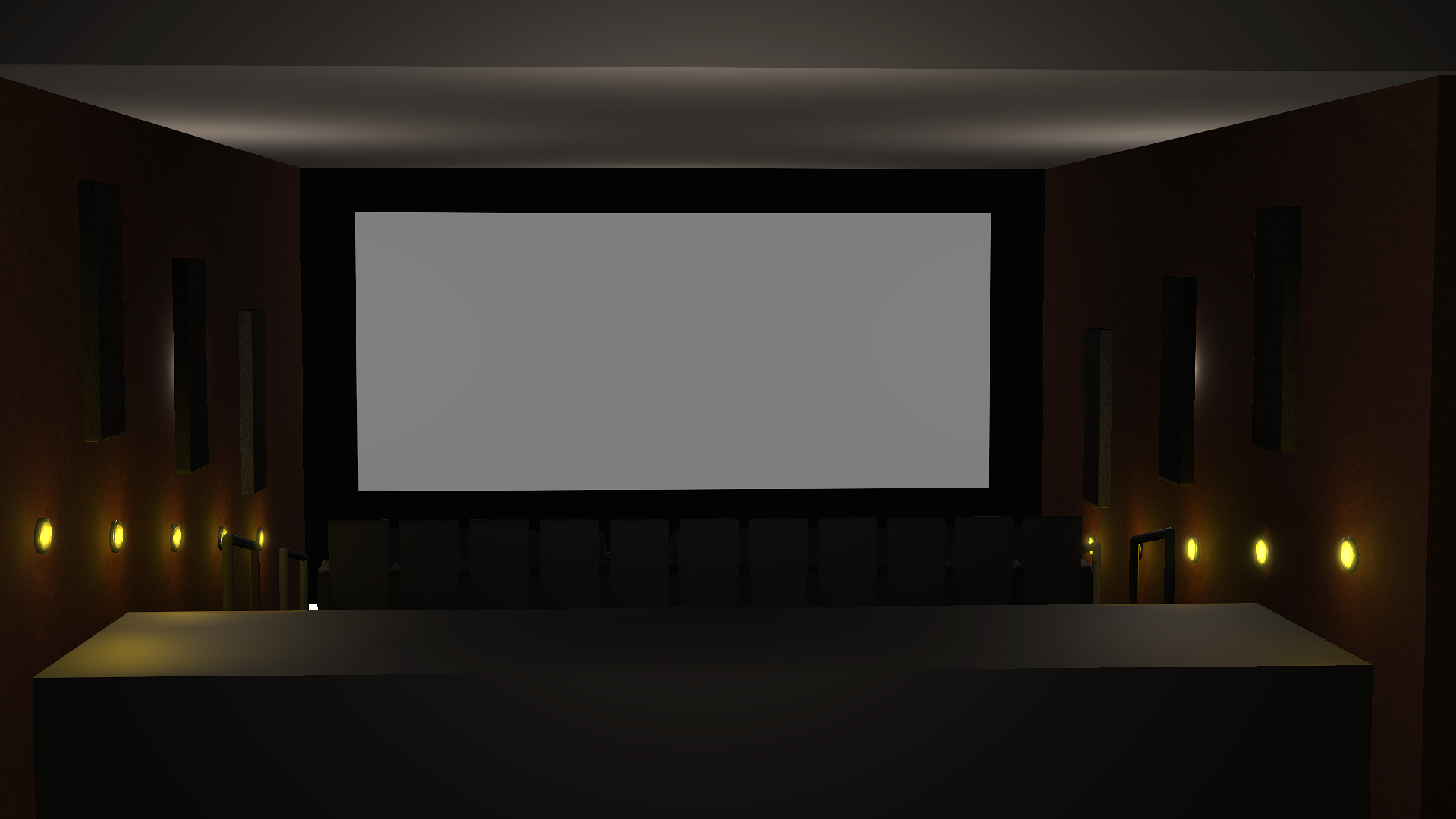
I modified this Theater prop I purchased, and I was already for a slide show, and ran into a 'I don't know how to do this in Python'.
Creator of the free website:
PixelDatabase.Net
A Free Online Text Based Image Editor