Profile Picture

Creating Facial and Lip-sync Animation in iClone for Blender

Posted By Mythcons 4 Years Ago
Rated 5 stars based on 1 vote.

Creating Facial and Lip-sync Animation in iClone for Blender

Author
Message
Mythcons
Mythcons
Posted 4 Years Ago
View Quick Profile
Distinguished Member

Distinguished Member (7.3K reputation)Distinguished Member (7.3K reputation)Distinguished Member (7.3K reputation)Distinguished Member (7.3K reputation)Distinguished Member (7.3K reputation)Distinguished Member (7.3K reputation)Distinguished Member (7.3K reputation)Distinguished Member (7.3K reputation)Distinguished Member (7.3K reputation)

Group: Forum Members
Last Active: Last Year
Posts: 455, Visits: 3.2K
https://forum.reallusion.com/uploads/images/9cd7f934-2853-4ef1-a76e-3680.jpg

Creating Facial and Lip-sync Animation in iClone for Blender

Greetings, my name is Peter Alexander, a 3D Generalist and freelancer who works heavily with iClone and Character Creator.
 
iClone's Facial Animation Technology includes facial expressions, lip-sync animation and facial mocap which provides real-time facial animation with facial capture equipment.
AccuLips provides a very intuitive way to generate procedural, editable lip-syncing animations, allowing users to easily create accurate, natural, and smooth talking performances. It detects and extracts text and viseme from audio, or imports a prepared script for precise lip-syncing which saves a massive amount of time when animating dialogue.

In this article, I'm going to run you through the process of using AccuLips to create lip-sync animation for my Laughing Buddha. I’m also going to show you how to export your animation from iClone to Blender for Eevee rendering.

To keep the focus on AccuLips, I've already done the character's movements using elements from a previous project. You can see the lip-sync animation tutorial in the following video:


Prepare Recorded Voice MP3 File Compatible with iClone.

For the character's audio track, I recorded my voice using Audacity, an audio manipulation application, and altered the audio's pitch and reverberation. After editing the track according to my needs, I save it as an MP3 file, which is compatible with AccuLips and iClone.

https://forum.reallusion.com/uploads/images/aa19461b-b6f1-472f-a0f8-7a4f.png

Import and Edit the Audio in iClone

In iClone, go to Animation and Create Script, choose AccuLips, and import the saved audio. Select Generate Text. AccuLips will analyze the audio and attempt to approximate the speech into text. The words that can’t be identified will be in red, much like a spell check. You can manually correct this for a better generation of visemes.

https://forum.reallusion.com/uploads/images/b13e5307-e571-4e85-b6a4-c761.png

Adjust Text for Better Visemes and Modify Visemes

When you apply the AccuLips data to the animation, it will produce the various visemes to accompany the audio. I then go through the timeline, and if I want a sound to be emphasized or replaced with the lip-sync, I click on the viseme indicator and adjust it. The key point is that you want to emphasize visemes at certain points during the animation. If the dialog emphasizes a sound, the animation should as well. You can keep the lip editor open as you go through the timeline, to make things easier to adjust.

https://forum.reallusion.com/uploads/images/768dc49c-2f6a-4bde-8afd-ae5a.png

Export the Audio and Character from iClone

If you choose to render in Blender, you'll want to do two things. First, export the audio from the range of the video, then select the character and export the FBX from the same range. This will ensure that the audio and animation are in sync.

https://forum.reallusion.com/uploads/images/20090cad-6dd4-4245-b594-e9a1.png

https://forum.reallusion.com/uploads/images/41d90860-f3f6-4063-8dc4-c6e7.png

Import Character into Blender via Auto Setup

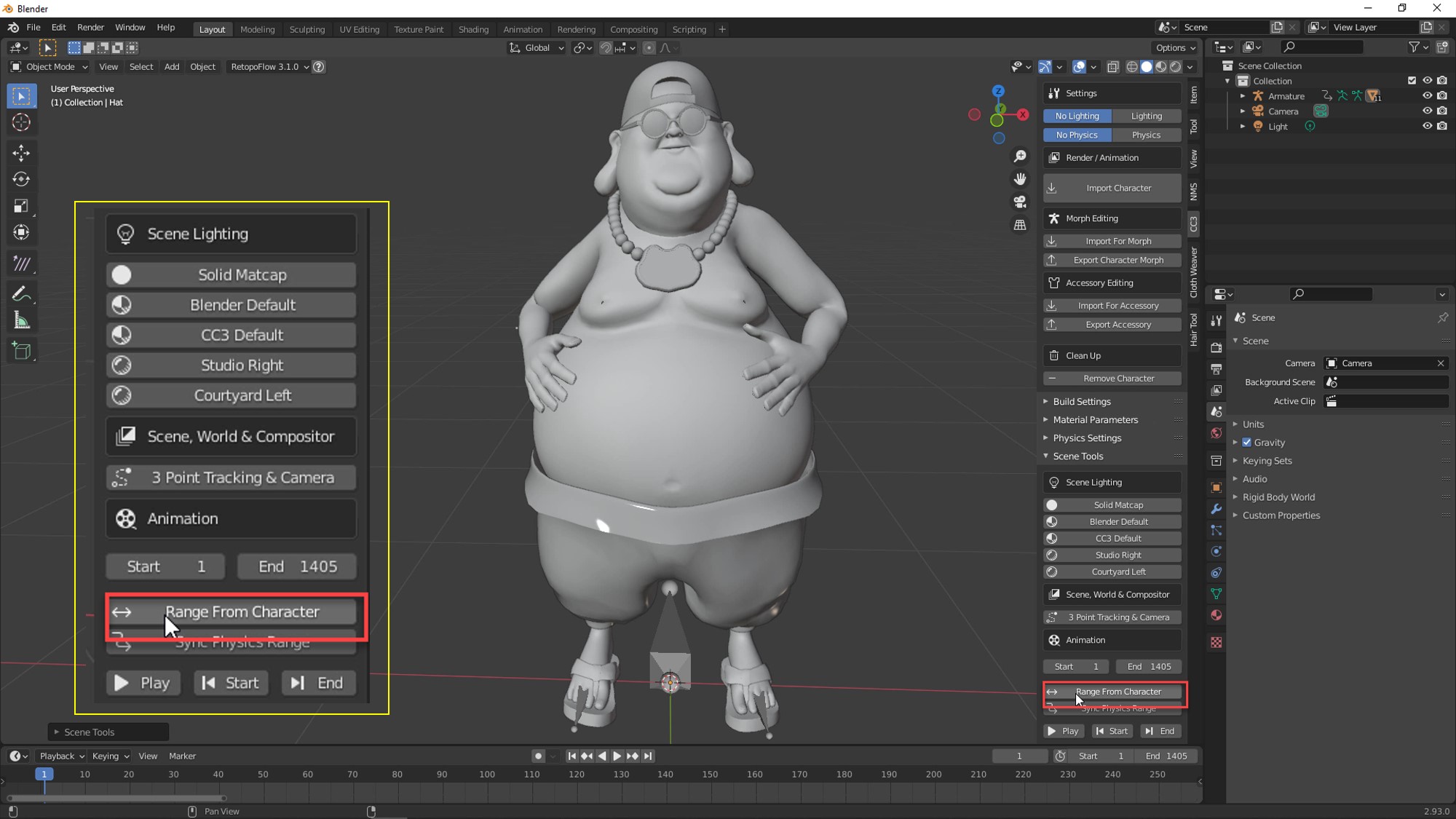
In Blender use the Blender Auto Setup, located in the CC3 tab, to import the FBX file as a character. In the CC3 tab, click the Range from Character option to set the proper animation range for the timeline.
https://forum.reallusion.com/uploads/images/4cf33dea-c241-4e02-9106-dd08.jpg


Import the Audio in Blender

To import the audio, go to the Video Sequencer, press Shift+A, then select Sound from the menu. Or you can go to the Add menu at the top of the Video Sequencer section and add Sound from there. This will allow you to select the previously exported audio file. You can select the Playback panel on the timeline to enable scrubbing so you can hear your audio as you go through your animation timeline. If you don't hear the audio, open preferences, go to System, then check your Sound settings.


https://forum.reallusion.com/uploads/images/386f1039-d748-4ccf-828f-9128.png

https://forum.reallusion.com/uploads/images/047daa23-8c15-4377-9707-ee7f.png

Save the Animation as a Video File

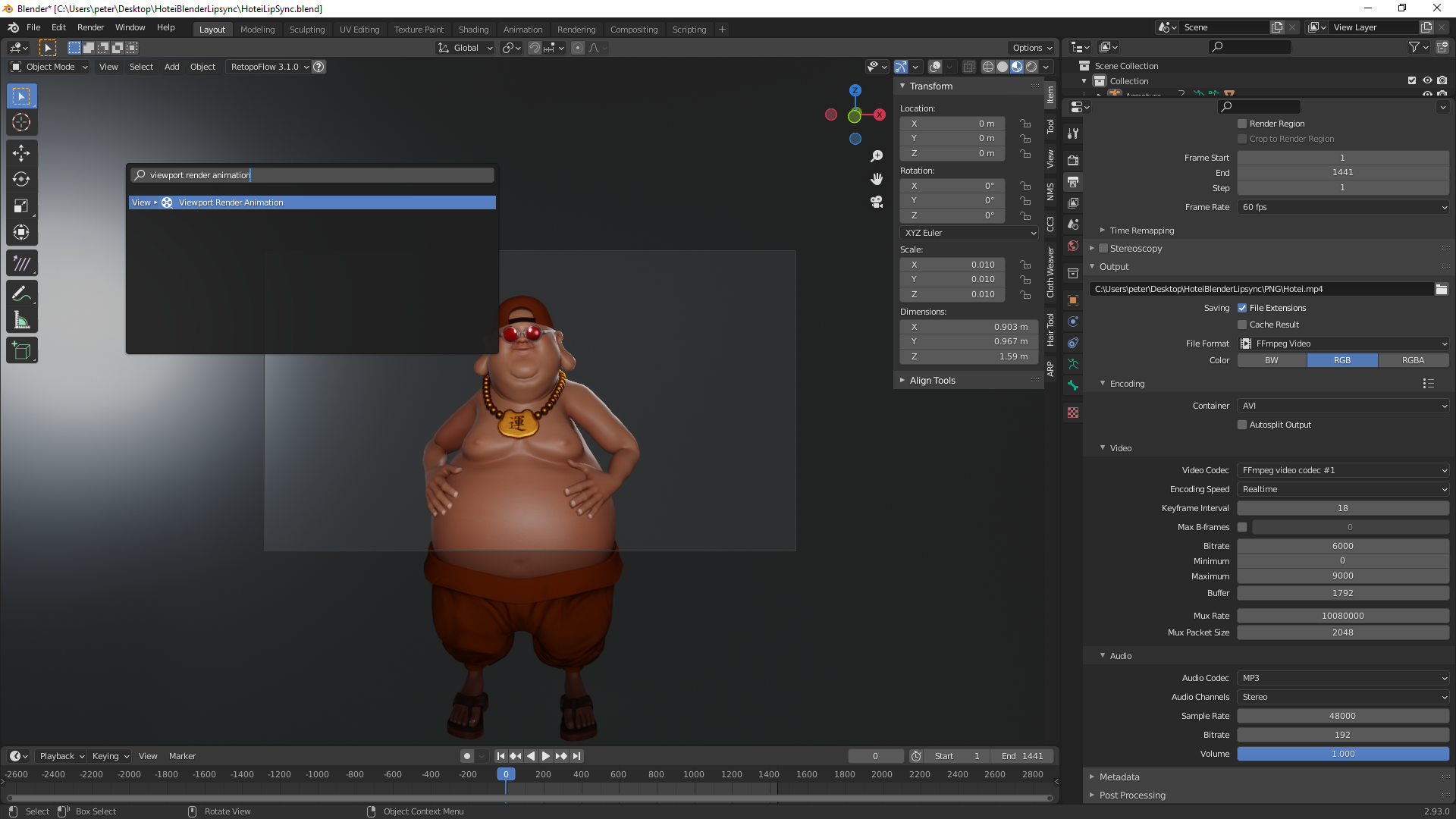
To save the animation as a video, go to the Scene tab, go to Output, and choose to save it in a video format rather than as an image. Also, remember to choose an audio encoding option. If you plan to do some compositing, you can set up a green screen or save this as a video with transparency (RGBA).

https://forum.reallusion.com/uploads/images/7280ff3a-e651-4b6c-9916-4192.png

Rendering to Video File in Blender

https://forum.reallusion.com/uploads/images/135a9c06-541b-49f8-99bb-cbc3.png

Now with everything set up, choose Viewport Render Animation, rather than the full render (depending on your rendering preferences). This will render things as they appear in the Eevee Preview window.

Examples of other lip-syncs and facial animations:


If anyone has any questions, comments, or even suggestions, post them and I'll do my best to address them.

rosuckmedia
rosuckmedia
Posted 4 Years Ago
View Quick Profile
Distinguished Member

Distinguished Member (9.4K reputation)Distinguished Member (9.4K reputation)Distinguished Member (9.4K reputation)Distinguished Member (9.4K reputation)Distinguished Member (9.4K reputation)Distinguished Member (9.4K reputation)Distinguished Member (9.4K reputation)Distinguished Member (9.4K reputation)Distinguished Member (9.4K reputation)

Group: Forum Members
Last Active: 7 Months Ago
Posts: 3.2K, Visits: 4.8K
@Mythcons
Great , Many Thanks.👍👍
Did you render it with the Blender sequencer.?
Greetings rosuckmedia
Mythcons
Mythcons
Posted 4 Years Ago
View Quick Profile
Distinguished Member

Distinguished Member (7.3K reputation)Distinguished Member (7.3K reputation)Distinguished Member (7.3K reputation)Distinguished Member (7.3K reputation)Distinguished Member (7.3K reputation)Distinguished Member (7.3K reputation)Distinguished Member (7.3K reputation)Distinguished Member (7.3K reputation)Distinguished Member (7.3K reputation)

Group: Forum Members
Last Active: Last Year
Posts: 455, Visits: 3.2K
rosuckmedia (8/20/2021)
@Mythcons
Great , Many Thanks.👍👍
Did you render it with the Blender sequencer.?
Greetings rosuckmedia


Hi rosuckmedia,

I rendered it with ‘Viewport Render Animation’, which renders the audio along with the Eevee viewport. It is not a ‘full’ render, which requires a slightly different visual set up in my experience. The ‘Viewport Render Animation’ option can be found in the Search dialog, which I believe can be found through the F3 key.
rosuckmedia
rosuckmedia
Posted 4 Years Ago
View Quick Profile
Distinguished Member

Distinguished Member (9.4K reputation)Distinguished Member (9.4K reputation)Distinguished Member (9.4K reputation)Distinguished Member (9.4K reputation)Distinguished Member (9.4K reputation)Distinguished Member (9.4K reputation)Distinguished Member (9.4K reputation)Distinguished Member (9.4K reputation)Distinguished Member (9.4K reputation)

Group: Forum Members
Last Active: 7 Months Ago
Posts: 3.2K, Visits: 4.8K
Okay Many Thanks

rosuckmedia
rosuckmedia
Posted 4 Years Ago
View Quick Profile
Distinguished Member

Distinguished Member (9.4K reputation)Distinguished Member (9.4K reputation)Distinguished Member (9.4K reputation)Distinguished Member (9.4K reputation)Distinguished Member (9.4K reputation)Distinguished Member (9.4K reputation)Distinguished Member (9.4K reputation)Distinguished Member (9.4K reputation)Distinguished Member (9.4K reputation)

Group: Forum Members
Last Active: 7 Months Ago
Posts: 3.2K, Visits: 4.8K
I saw in this video what I watched only briefly,
that they entered 2 commands for the clothes, something with normals,
Unfortunately, it was pretty fast and I could not see exactly,
which commands you have entered.
could you show the commands again.
Greetings rosuckmedia
Mythcons
Mythcons
Posted 4 Years Ago
View Quick Profile
Distinguished Member

Distinguished Member (7.3K reputation)Distinguished Member (7.3K reputation)Distinguished Member (7.3K reputation)Distinguished Member (7.3K reputation)Distinguished Member (7.3K reputation)Distinguished Member (7.3K reputation)Distinguished Member (7.3K reputation)Distinguished Member (7.3K reputation)Distinguished Member (7.3K reputation)

Group: Forum Members
Last Active: Last Year
Posts: 455, Visits: 3.2K
rosuckmedia (8/20/2021)
I saw in this video what I watched only briefly,
that they entered 2 commands for the clothes, something with normals,
Unfortunately, it was pretty fast and I could not see exactly,
which commands you have entered.
could you show the commands again.
Greetings rosuckmedia


Hi rosuckmedia,

Sorry about that speed issue, it is a consequences of certain time constraints. The normals issue occurs with some imported items from Character Creator and iClone. I'm not entirely sure what the origin of the issue is.

There are a few commands I use, depending on the issue. First select all vertices (Edit mode), then:

- Mesh > Normals > Recalculate Outside (I always type 'recalculate' to find this in the Search bar)
- Mesh > Normals > Average > Face Area (I always type 'average' to find this in the Search bar)
- Mesh > Normals > Set from Faces (Might have to search for the whole thing ['Set from Faces'] to narrow down this command)

Generally the first command listed will fix most normal issues in my experience.
rosuckmedia
rosuckmedia
Posted 4 Years Ago
View Quick Profile
Distinguished Member

Distinguished Member (9.4K reputation)Distinguished Member (9.4K reputation)Distinguished Member (9.4K reputation)Distinguished Member (9.4K reputation)Distinguished Member (9.4K reputation)Distinguished Member (9.4K reputation)Distinguished Member (9.4K reputation)Distinguished Member (9.4K reputation)Distinguished Member (9.4K reputation)

Group: Forum Members
Last Active: 7 Months Ago
Posts: 3.2K, Visits: 4.8K
Many Thanks👍
Greetings rosuckmedia
AutoDidact
AutoDidact
Posted 4 Years Ago
View Quick Profile
Distinguished Member

Distinguished Member (6.1K reputation)Distinguished Member (6.1K reputation)Distinguished Member (6.1K reputation)Distinguished Member (6.1K reputation)Distinguished Member (6.1K reputation)Distinguished Member (6.1K reputation)Distinguished Member (6.1K reputation)Distinguished Member (6.1K reputation)Distinguished Member (6.1K reputation)

Group: Forum Members
Last Active: 2 Months Ago
Posts: 2.1K, Visits: 13.6K
Hi and thanks 
I downloaded this video yesterday
and I have one question:iclone seems stuck at 60 FPS
for animation.
What FPS should I render out full frames from Blender to assure
the audio matches the lipsynch?
I dont render AVIs'etc. from blender with audio
I render to frames (targas) and add audio in Davinci resolve.


RAG DOLL COLLISION ANIMATIONS FOR ICLONE 8 & 7
---------------------------------------------------------------------------------------------------------------------
Ghost Origins
My latest Feature length film created with Iclone.
https://forum.reallusion.com/uploads/images/adf9b210-df59-4cb6-aa1b-9de5.jpg
My Sci- Fi Graphic Novel on Amazon: https://a.co/d/9k3cwoY


Mythcons
Mythcons
Posted 4 Years Ago
View Quick Profile
Distinguished Member

Distinguished Member (7.3K reputation)Distinguished Member (7.3K reputation)Distinguished Member (7.3K reputation)Distinguished Member (7.3K reputation)Distinguished Member (7.3K reputation)Distinguished Member (7.3K reputation)Distinguished Member (7.3K reputation)Distinguished Member (7.3K reputation)Distinguished Member (7.3K reputation)

Group: Forum Members
Last Active: Last Year
Posts: 455, Visits: 3.2K
AutoDidact (8/20/2021)
Hi and thanks 
I downloaded this video yesterday
and I have one question:iclone seems stuck at 60 FPS
for animation.
What FPS should I render out full frames from Blender to assure
the audio matches the lipsynch?
I dont render AVIs'etc. from blender with audio
I render to frames (targas) and add audio in Davinci resolve.


Hi there, my understanding is that you want your rendering to be at 60 FPS, whether its video or an image sequence. My experience in this is only through errors I've made in accidentally changing the FPS to 30, and the audio going out of sync.
You might want to do a quick test on a small batch of rendered images just to make sure. I wish I had a firm answer, but I don't do a lot of rendering. I'm more of a content creator.

I hope that helps a little.


Reading This Topic