|
Miranda (RL)
|
Miranda (RL)
Posted 9 Years Ago
|
|
Group: Administrators
Last Active: 4 Years Ago
Posts: 1.8K,
Visits: 11.2K
|
Other than adding PBR rendering, Character Creator 2 has improved its character export compatibility with added support for Unreal Engine 4's character rig. In the previous version of Character Creator 1, in order to apply a clothed CC character to Unreal, you need to export CC characters to iClone (.iavatar) first, and then do another FBX export from 3DXchange to Unreal, and that's just the beginning. From Character Creator 2 (CC 2.0), you can convert CC characters to FBX in UE4 Rig directly in CC 2.0, which saves all the extra steps such as bone mapping, renaming or axis alignment. This new feature greatly enhances the CC to Unreal productivity, let's see how it works! Steps:- [Character Creator 2] Export CC characters in FBX format to UE4
- Check "Delete Hidden Mesh" to remove occluded inner meshes with multi-layered of dresses to prevent surface penetration and reduce polycount for better real-time performance
- Check “Convert Bone Structure for Unreal 4 Rig” & “Rename Duplicated Bones (Unreal)”
- Uncheck “Include Motion” if you just want to export just the static character
- (Optional) Check "Gather files into a container folder" to gather all the exported FBX file, FBXkey, and textures into a single folder for simplicity
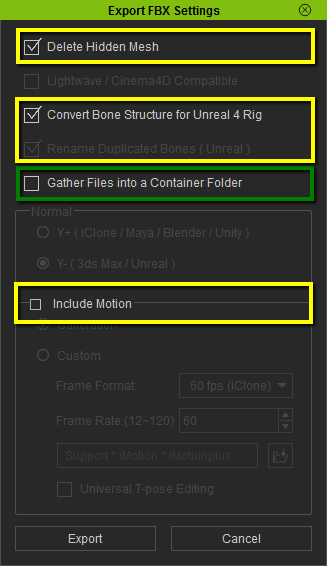
- [Unreal Content Browser] Import the CC character FBX to Unreal Content Browser
- Choose “UE4_Mannequin_Skeleton” in the Skeleton field
- Check “Use T0As Ref Pose” so that you don’t need to calibrate the initial pose, instead, we will automatically align CC T-pose to UE4's A pose at frame 0
- [Unreal Content Browser] Material settings
- PBR textures can not be carried by FBX, so you have to manually load and assign AO maps, Metallic maps, Roughness maps to the material channels in Unreal
- You should set the textures to linear color space for the correct result, please uncheck “sRGB” in the Texture Editor for all AO, Metallic, or Roughness texture maps
- Now you can see that CC character is totally compatible with UE4's Third person game controller and default animation system
Are you looking for an efficient way to import Mixamo animations to Unreal? Click HERE to know more. * 3DXchange Pipeline Edition is Required for FBX export. Please refer to License Requirements.
|