|
By waltercl - 5 Years Ago
|
Hi, I'm new so sorry if I'm overlooking something obvious, but I purchased some animations off of the Marketplace, and I'm trying to figure out how to export them in CC3. The animations come up in my content window, and I can right-click and apply them to a character, but when I choose to Export FBX there is no option in the bottom portion to add animations. I can choose from "Calibration", "Current Pose", and "Custom" but none of them gives me an option to add all my animations so I can export with the character.
Thanks for any help!
|
|
By michaelrbarton - 5 Years Ago
|
Here is a link about exporting CC3 FBX characters with motions.
Character Creator 3 Online Manual - Exporting FBX Characters with MotionPlus (reallusion.com)
|
|
By waltercl - 5 Years Ago
|
My animations are motion and not motion plus so I checked out this article: https://manual.reallusion.com/Character_Creator_3/ENU/3/Content/Character_Creator_3/3/17_Export/Exporting_FBX_Characters_with_iMotion.htm
I followed that, but I do not have the option to add animations. It's not just that I can't add the animations I bought, but I can't add anything including the standard default animations.
Screenshot is attached.
|
|
By michaelrbarton - 5 Years Ago
|
Have you downloaded the trial version of 3DXChange? What you need to do is to load your character into 3DXchange. Then in 3DXchange you can add motions to your character. Look at the
photos. When you load your character in iClone 7, it will have the motions included. Then you can save the motions in persona by clicking the + sign to add your character's motions.
Then any avatar you use, all you have to do is go to persona and click on the saved motion and all will be added to any avatar you have highlighted in the scene.
I did not actually send the character to iclone, because I am saving the 12 times I have left for other things.
Make sure you click on the IC tab next to FBX. That way you will be accessing iclone files to import into 3DXChange and when you are ready to export files back into iclone, just click on the IC tab.
When exporting, make sure the boxes are checked for exporting avatar, animations and rlmotions.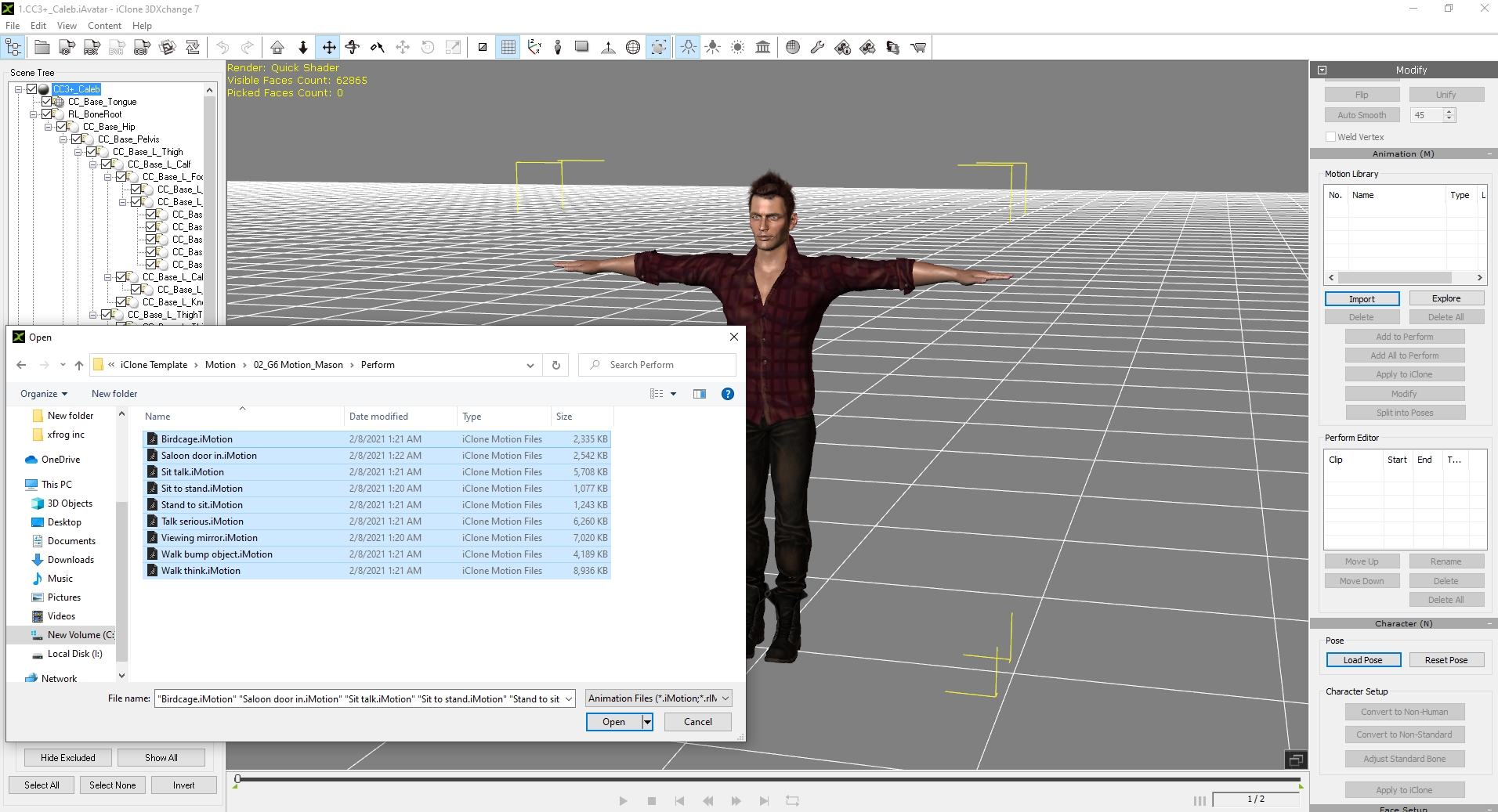 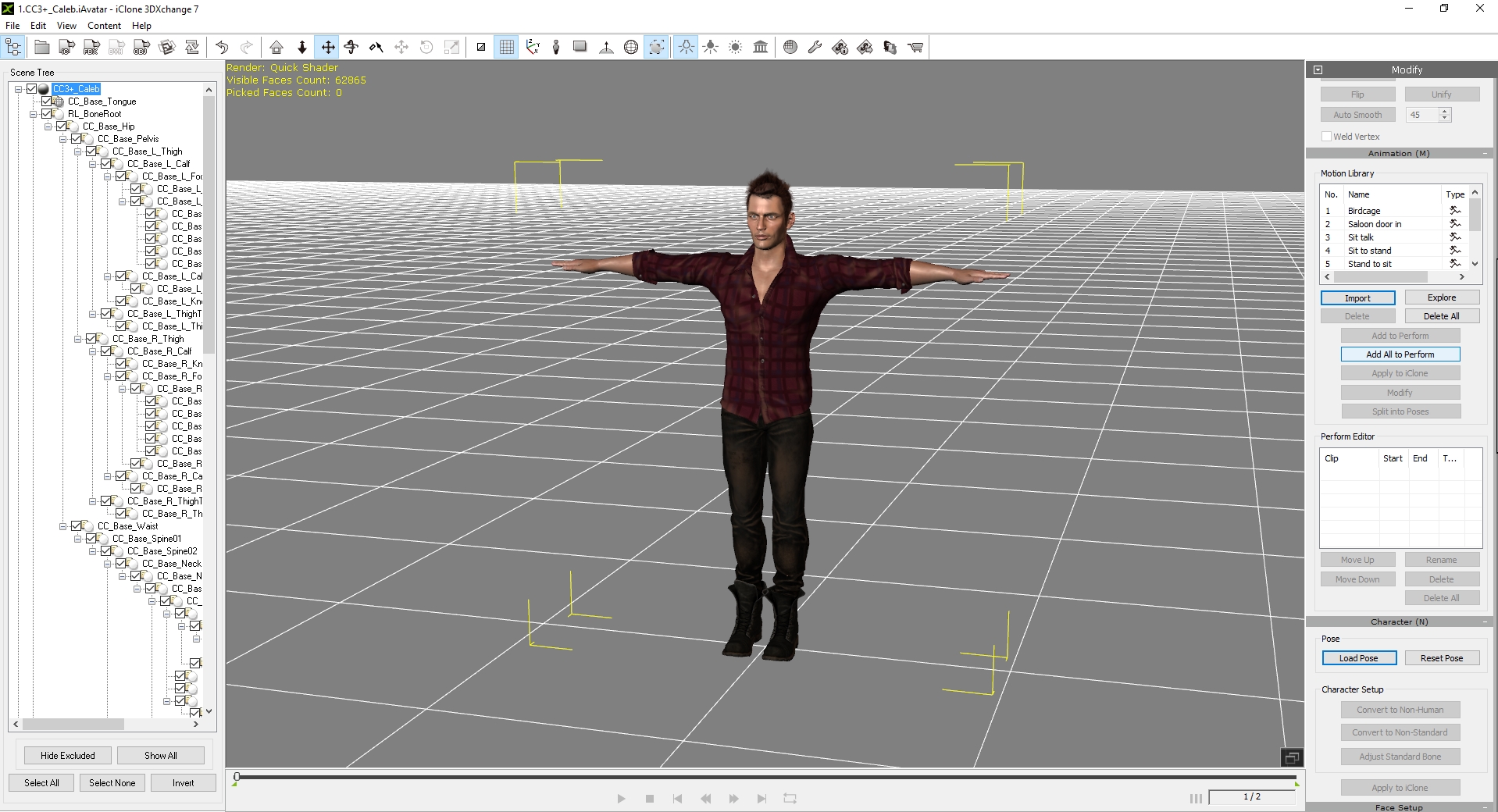 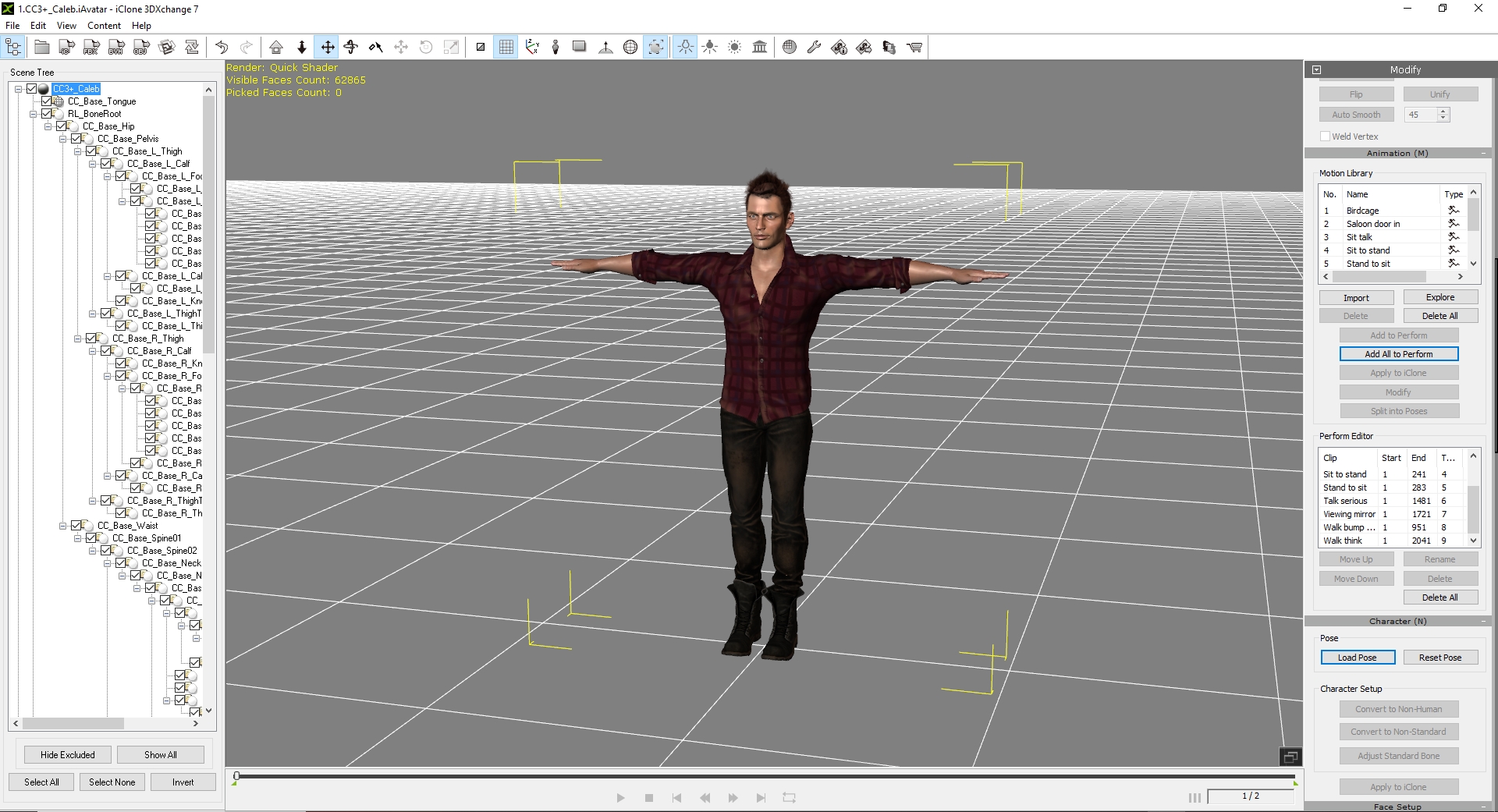 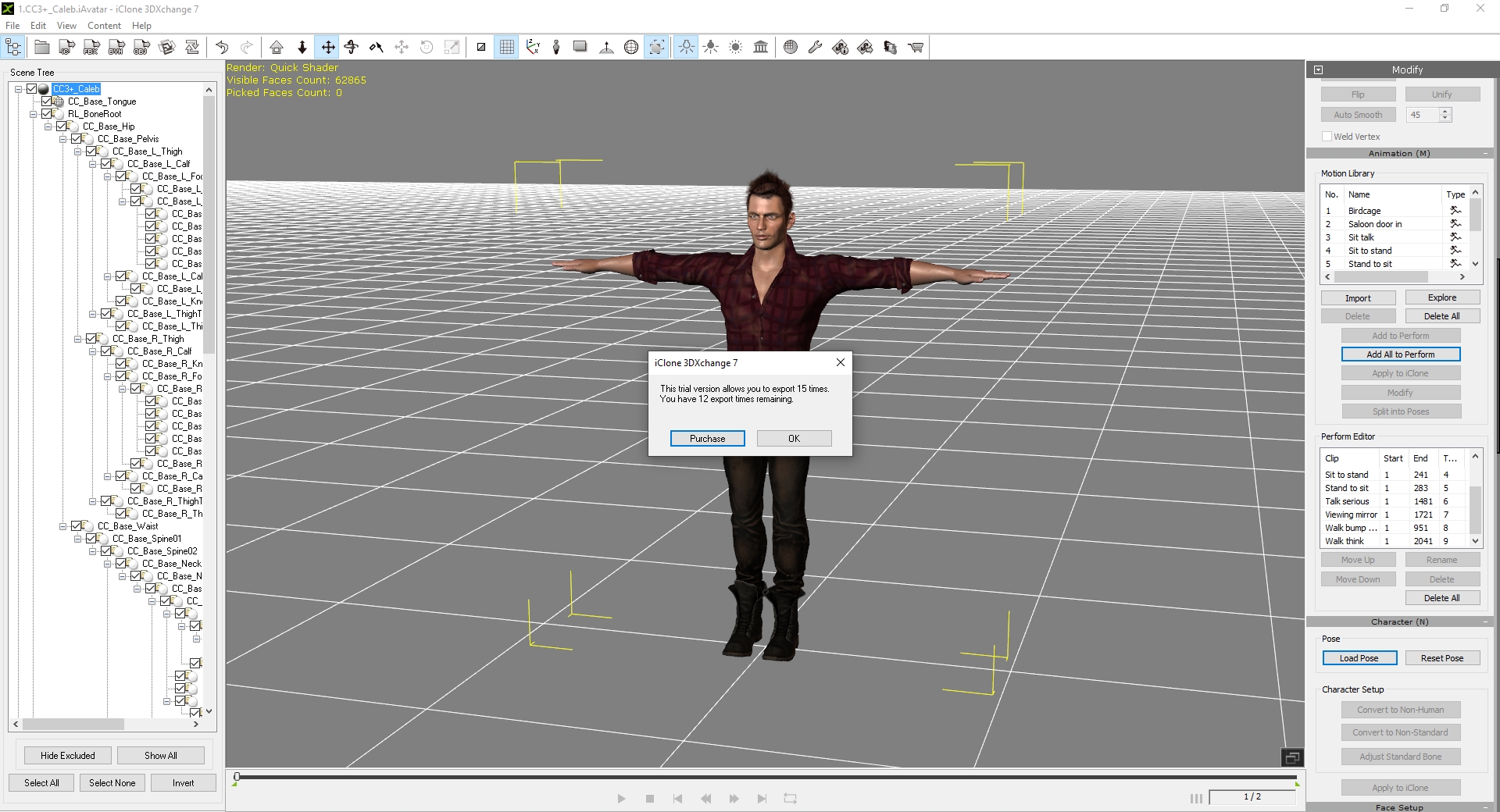 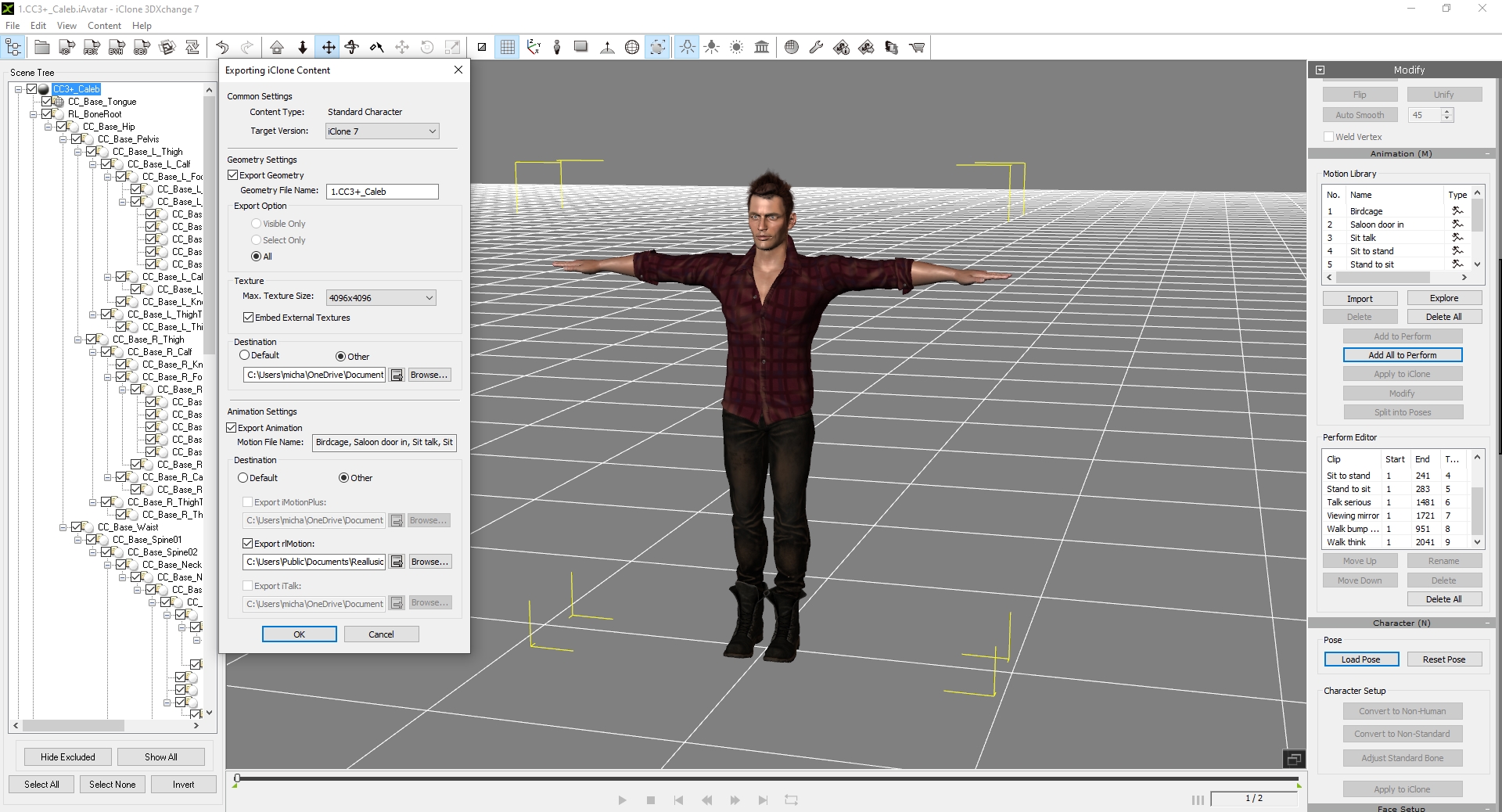 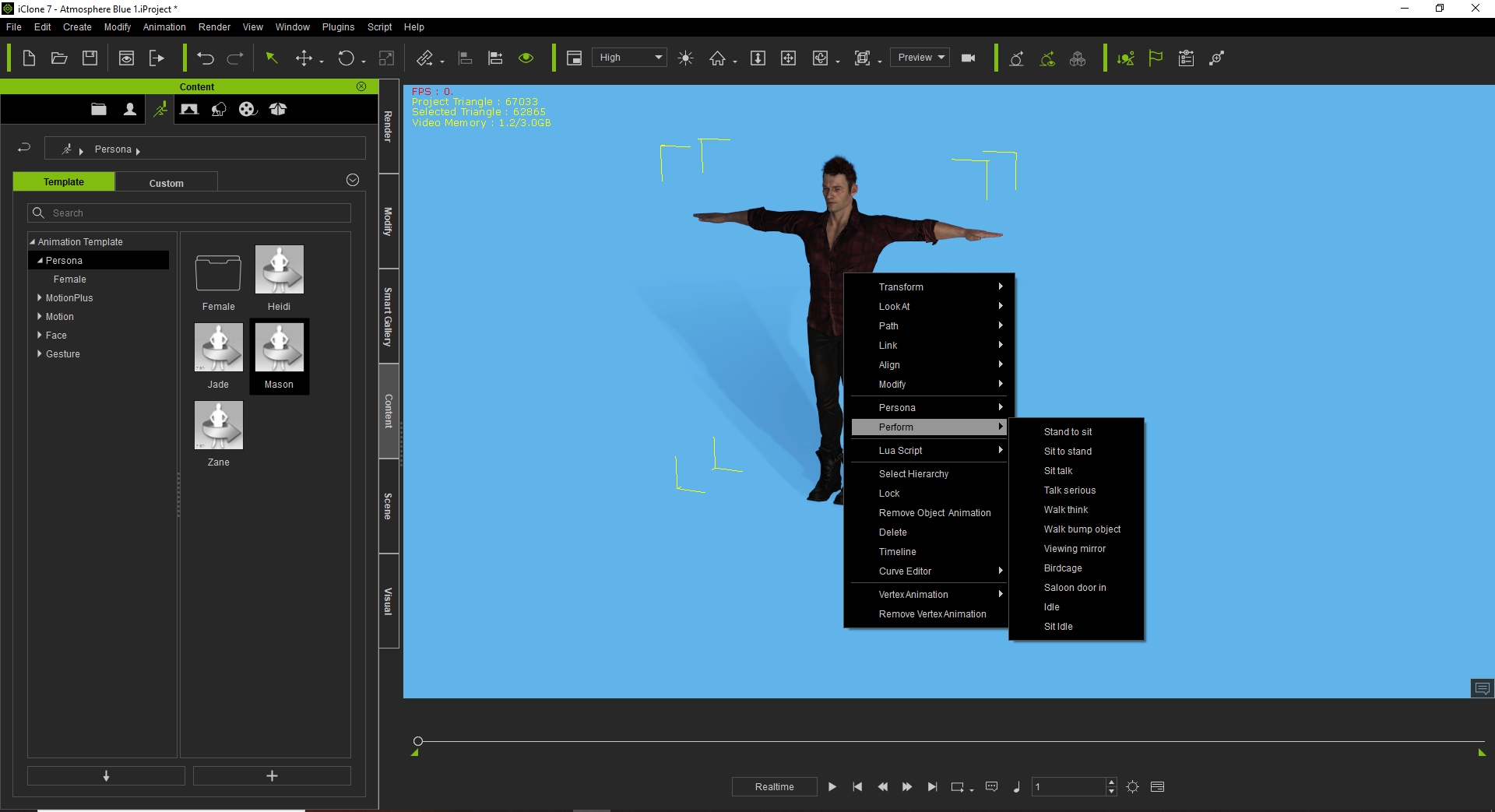
|
|
By 4u2ges - 5 Years Ago
|
@waltercl
Just use scroller on the right to see the option for adding animations. :)
|
|
By michaelrbarton - 5 Years Ago
|
|
CC3 only does poses. And only the first frame.
|
|
By waltercl - 5 Years Ago
|
So I only have CC3. Guess I have to get IClone7 and the 3d export tool (3dxChange?).
|
|
By Rampa - 5 Years Ago
|
|
waltercl (5/15/2021)
So I only have CC3. Guess I have to get IClone7 and the 3d export tool (3dxChange?).
If you are exporting for a game engine, you actually need CC3 Pipeline. :)
Please check the earlier linked manual page for exporting the motions with your character from CC3 Pipeline.
|
|
By waltercl - 5 Years Ago
|
I do have CC3 Pipeline, and I've followed the directions in the manual. Maybe I'm missing something simple so I'll go over it again tomorrow.
|
|
By waltercl - 5 Years Ago
|
Oh man, do I feel dumb. Rampa had the answer.
|
|
By Rampa - 5 Years Ago
|
|
Actually, 4u2ges had the answer. The export box has gained an elevator on the right side. So just scroll down a little to see the rest of the box.
|
|
By 4u2ges - 5 Years Ago
|
It is actually so funny that sometime you just can't please everyone.
We had a solid export applet, so a few users with low-res laptops complained they cannot see the bottom of it.
RL has added a scroller.
Now whole lot of other people cannot find hide mesh option and/or add animations.
There is a solution however.
Make it stretched as it used to be, but allow to resize from the top and allow to scroll resized window, so that a few laptop users can resize, drag it up and scroll to see the rest.
And spare the rest of us from annoying scrolls.
|