|
By Eric C (RL) - 5 Years Ago
|
Facial Expression - Expressive Facial Performance with ExPlus Blendshapes
In our IC7.9 grand update, we are adding ExpressionPlus (ExPlus), which includes 52 Apple ARKit blendshapes and tongue extension for increased expressiveness and unprecedented iPhone facial mo-cap quality. This feature will ensure highly expressive performances on all types of characters, including realistic digital doubles, stylized characters, and dramatized cartoon characters.
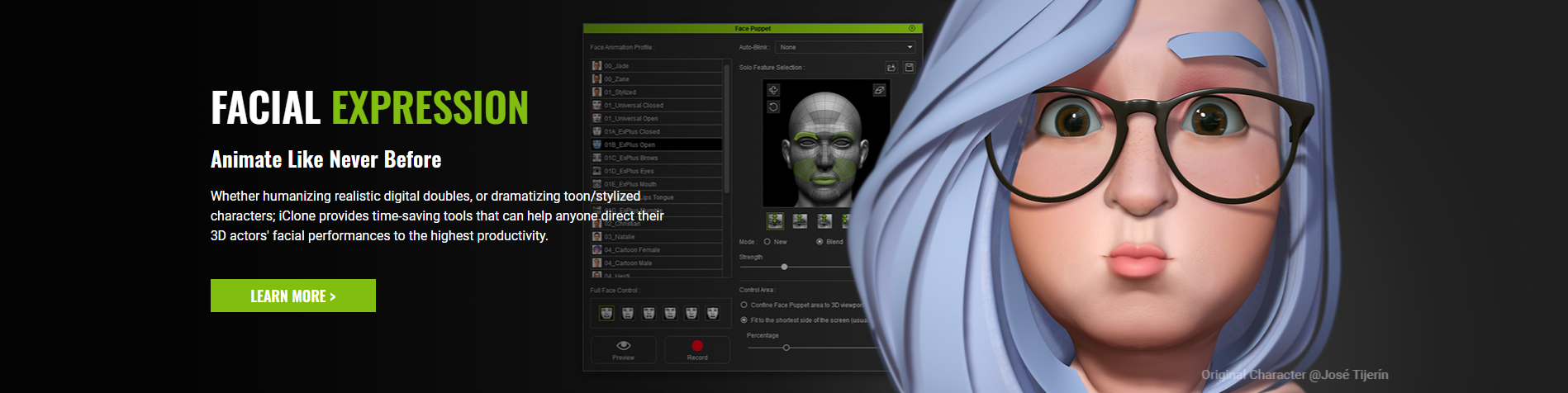
Learn more information from the Facial Expression page.
What are the two main updates in v7.9 Facial Expression?
1. Face Puppeteering: Intuitively drive facial expressions with mouse movements.
The seven newly added ExpressionPlus (ExPlus) profile sets provide a total of 23 predefined, easy-to-implement facial animation profiles which covers diverse personalities and emotions for delicate and subtle eye and mouth movements. Also comes with the ability to tone down the animation strength for realistic humans, or crank up for exaggerated and stylized characters.
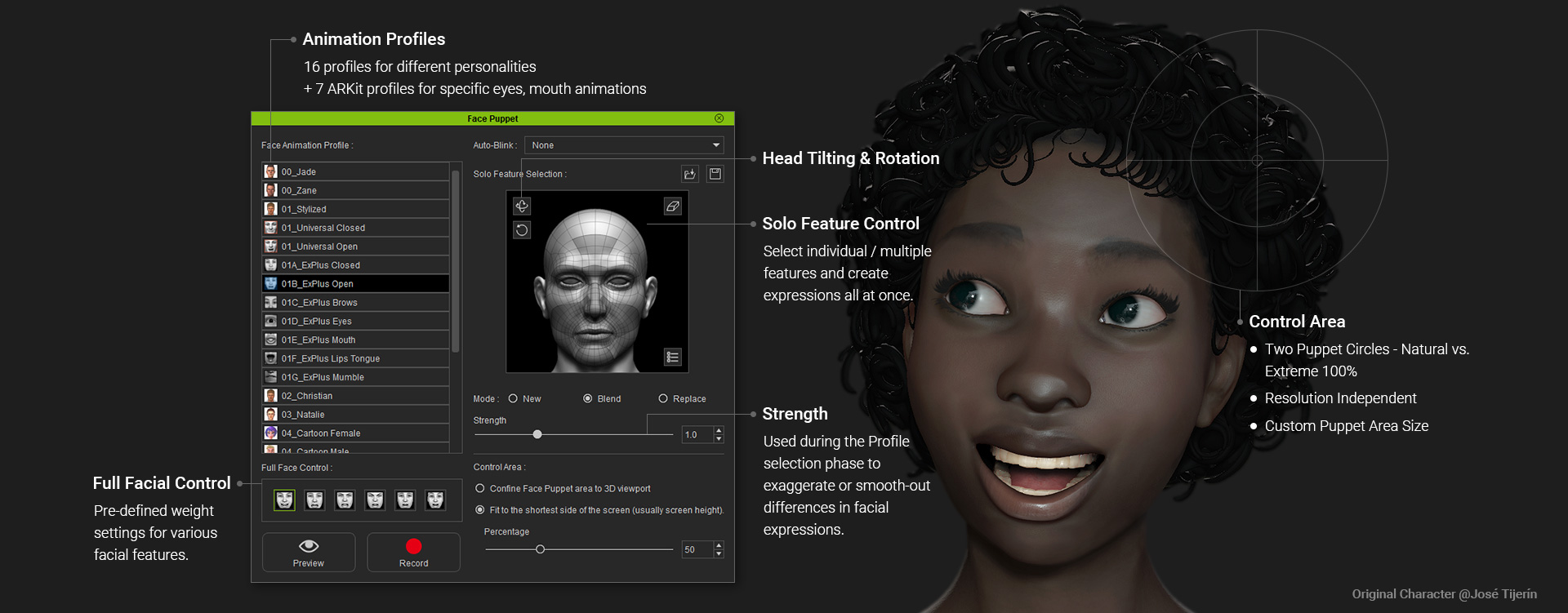
- ExpressionPlus (ExPlus) Profiles / **CC3 Base+ characters required*
By utilizing the advanced Expression Plus (ExPlus) profiles, you can animate facial parts like never before. Based on different facial location, there are 3 parts of the face that can be flexibly controlled, and you can easily animate Eyes, Mouth, Tongue, and even make the character mumble. - Overall Face - Emotions: mouth closed / mouth open
- Upper Face - Eyes, Brows
- Lower Face - Mouth, Jaw, Tongue
2. Face Key Editing: Refine or layer edit facial animations with muscle nodes, expression presets, and slider adjustments.
Once you have created facial expressions through lip-syncing, facial mo-cap or puppeteering, you can then fine-tune feature details by using the Face Key Editor. These facial keys will be overlaid and blended with existing expressions and stored in the Timeline track for further editing.
- Muscle Panel: Select one or several effective areas, drag the mouse to alter their muscle strength along with eyelids, brows, cheeks, mouth and nasal areas.
- Expression Presets: Is a quick way to jump between different emotion presets, or access ExPlus for 4 additional ARKit expression sets including tongue movements. Adjust the strength level to match your performance requirements.
- Morph Sliders: Through Morph Sliders, you can directly access 60 Standard and 63 (52+11) ExPlus Blendshapes. This gives not only complete control over expression details, but also input of extrapolated strength values (+/- 200 ), to observe what blendshapes are being triggered through the Muscle Panel and Expression Presets. Furthermore, you can actually see the blendshape names and values when exporting to external 3D tools.
Notification:
* You will need to apply ExPlus onto your character (limited to CC3+) in order to get the updated facial expression results. Click on the Yes button to proceed. 
|
|
By Eric C (RL) - 5 Years Ago
|
Other Enhancements: IC/CC - Face Key
Face Key - Muscle Tab
New ExPlus Expression Set option (the Default setting is the legacy method of controlling facial expressions):
For more information, watch the demo video and view the dedicated website.
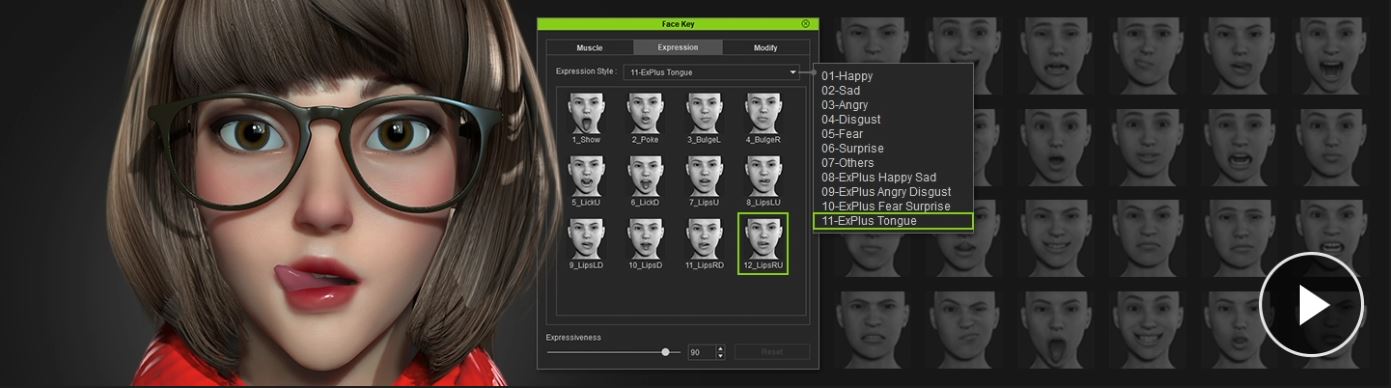
Every expression set has a Default option, with which the face can quickly become expression-less.
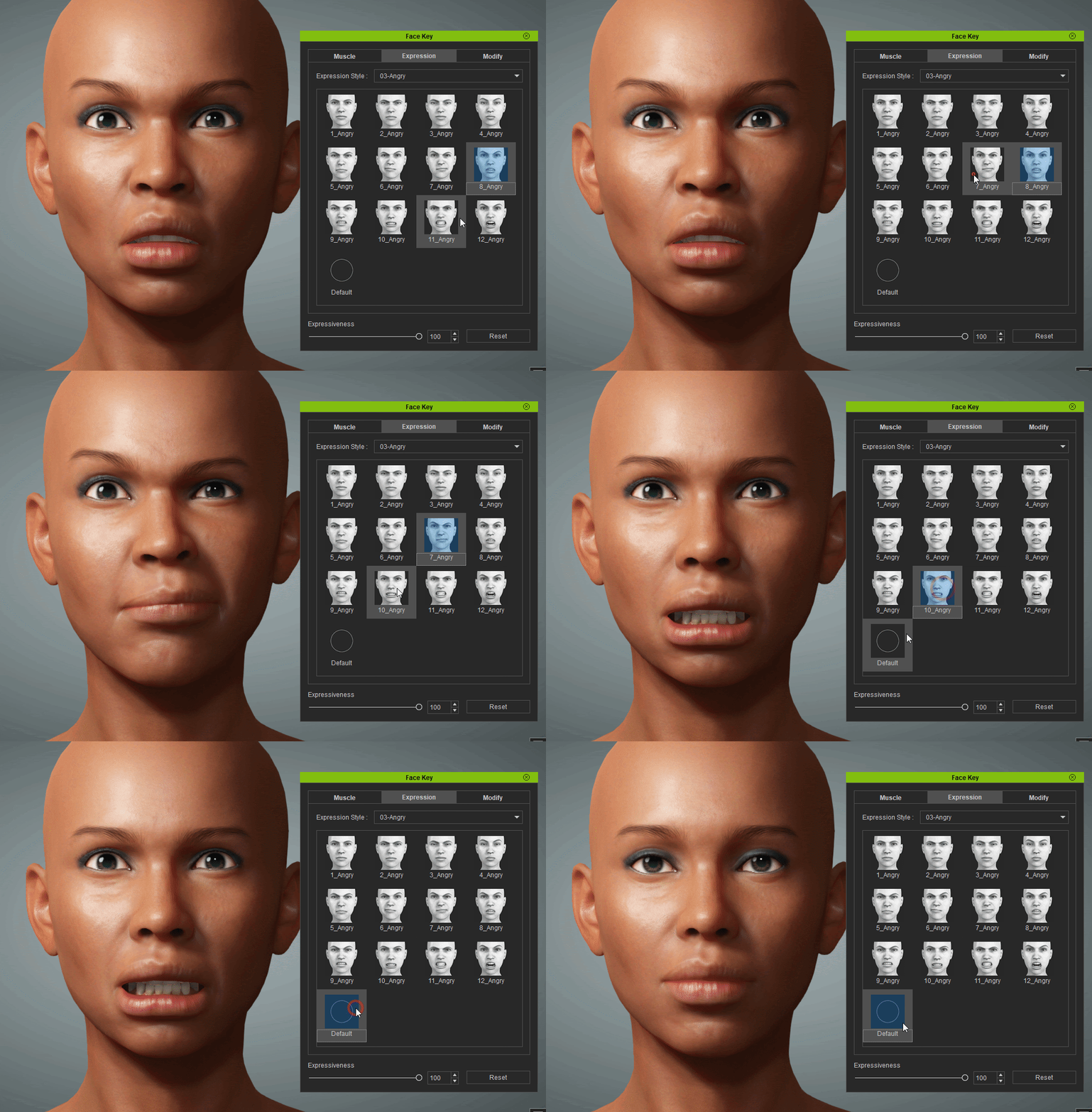
Face Key - Modify Tab
Access 60 Standard and 63 (52+11) ExPlus Blend-shapes through Morph Sliders. Not only for ultimate control over expression details -input extrapolated strength value (+/- 200 )- but also to observe the blend-shapes being triggered through the Muscle Panel and Expression Presets. Furthermore, you can see the blend-shape names and values when exporting to external 3D tools.
|
|
By Eric C (RL) - 5 Years Ago
|
Other Enhancement: IC/CC - Face PuppetFace Animation Profile
CC3+ character now have seven additional ExPlus expression sets ready for use.
Control Area- Previously, duo-monitor users came across a problem with distorted Face Puppet control regions. In response, two control modes are provided for Face Puppet.
- Confine Face Puppet area to the 3D view-port. This option has been moved over from Preference settings and is now under the purview of view-port settings.
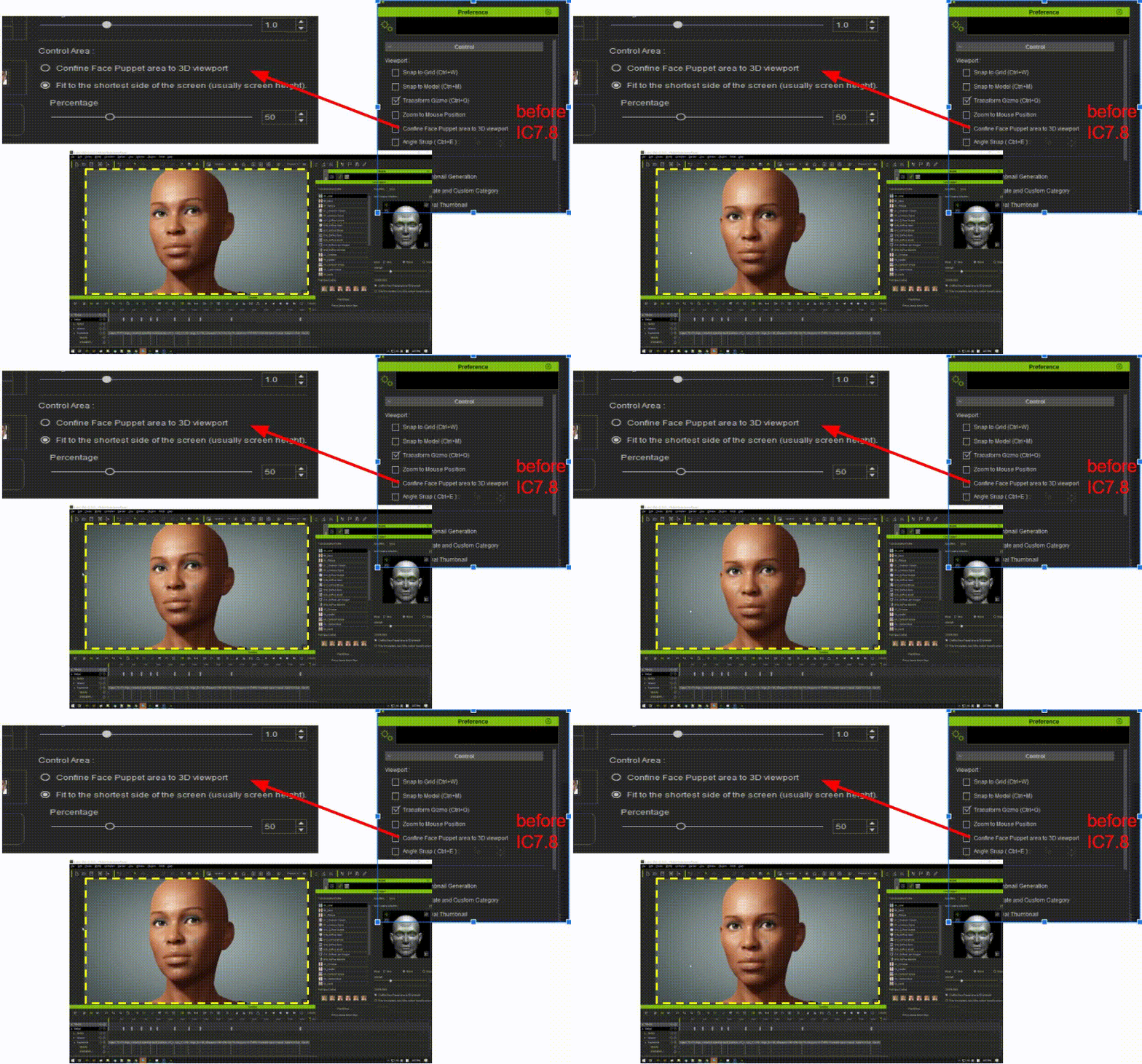
- Will set the center point to the position of the mouse upon recording.
The outermost circle represents expression settings at their max 100% strength (for stylized characters), while the inner circle is half at 50%. (for realistic characters). The record area is now marked with a large cross-hair making it clearly evident where the recording area ends. The size of the recording area can be adjusted by percentage settings. The initial size of the recording area (cross-hair) is determined by the shortest side of the monitor. (see more at the known issue "Face Puppet Cross-hair Disappearance")
Fit to the shortest side of the screen
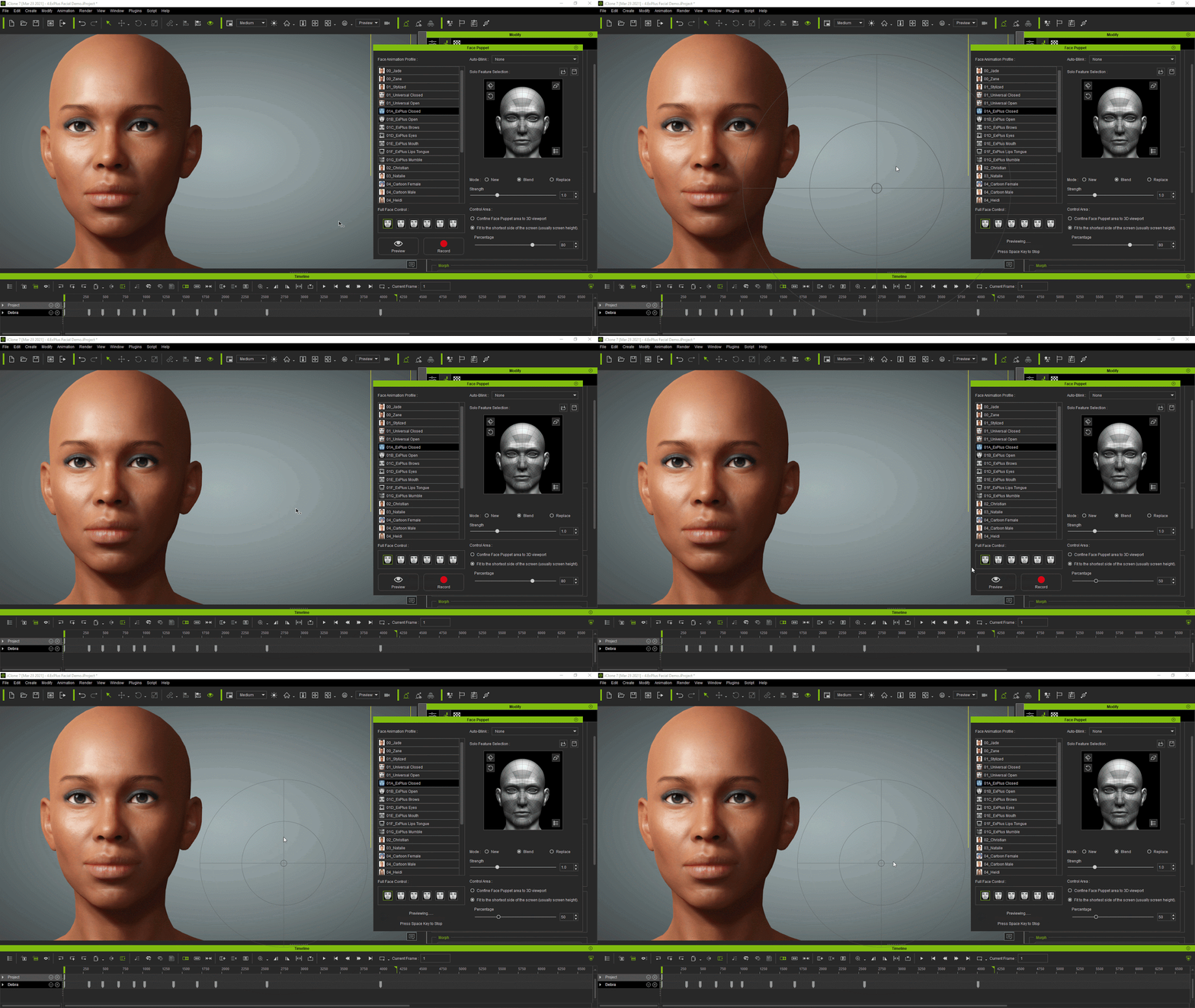
Auto Blink
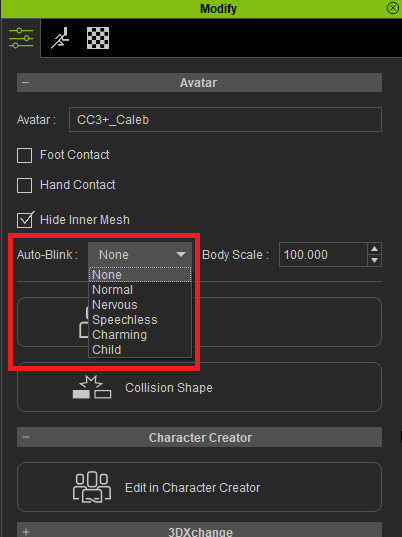
New Auto-Blink settings are available and interconnected in the Face Puppet window and the Modify panel.
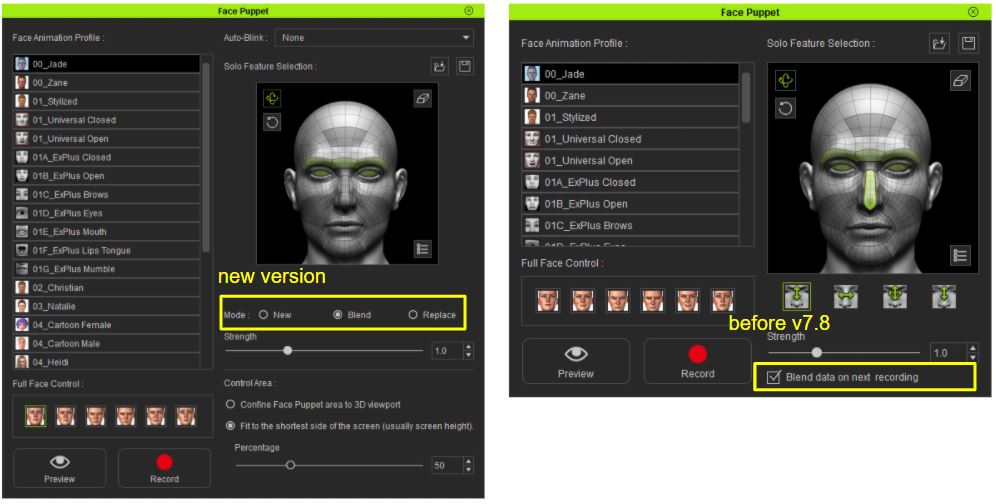
Mode
- The Blend mode settings have been optimized with three options:
- New: Ignores the current expressions applied onto the character.
- Blend: Will mix the new expressions onto the old.
- Replace:Will replace the old expressions with the new when they do overlap.
|
|
By Eric C (RL) - 5 Years Ago
|
Other IC Related Updates
Timeline Toolbar - Set Start/End Frame to the Selected
Mainly applied to the selected clip or target Collect Clip.
- A selected clip will be framed from beginning to end.
- Frame multi-selection is also available (Collect Clip or Scale). The range is determined by the first and last frame of the selected region.
- Framed according to the selected region plus the trailing clip when region Scale is used (Ctrl + multi-select in the timeline).
- Single frame selection translate to the selection of 2 frames while combining multiple selections will frame the first and last keys.
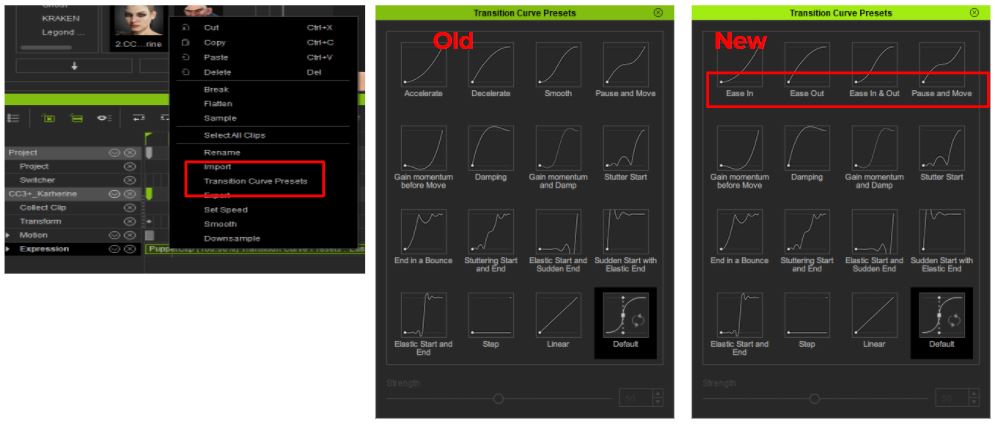
Renaming of some UI elements in iClone
- Right-click context menu for timeline keys and clips:
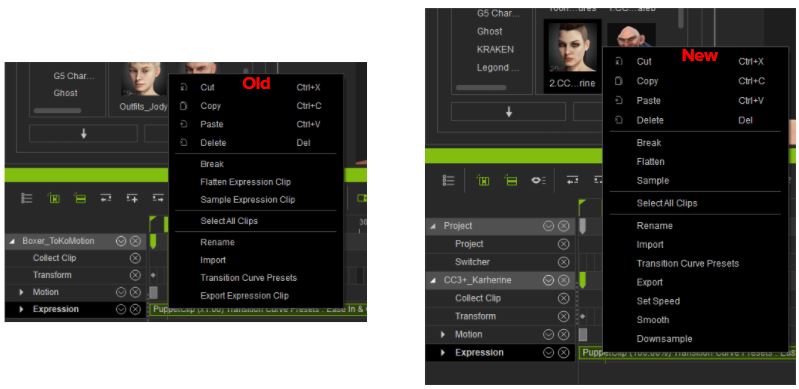
- Right-clicking on a timeline key:
|
|
By Eric C (RL) - 5 Years Ago
|
Other known issues related to Facial Expressions
Sometimes, the eyelids will over-extend on eye blinks which is caused by activating both the standard and ExPlus blink sliders. Try not to activate both types of eye blinks at the same time.

Likewise, if you were to deploy ExPlus blinks, make sure that Auto Blink is turned off, i.e. set to "None":
- ExPlus Profile Update
If you deny the update to ExPlus data, then adjusting the settings will either have no effect or cause unexpected errors.
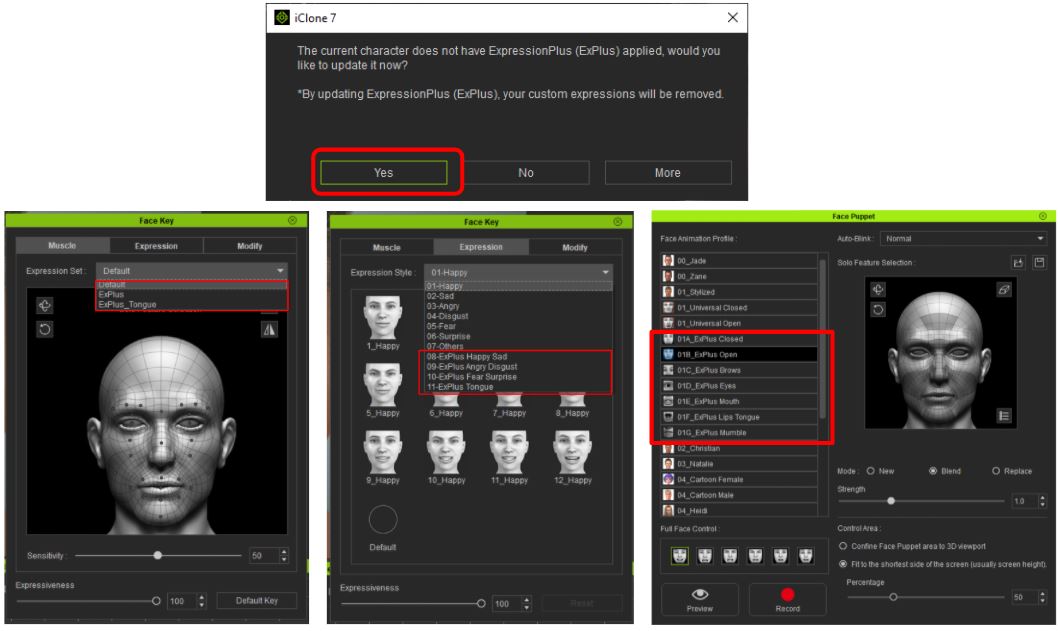
- Face Puppet Cross-hair Disappearance
If the program window does not reside on the main monitor, then the Face Puppet Cross-hair can disappear. You can avoid this problem by setting the monitor where the application resides as the main monitor.

- Hair Mesh Intersection
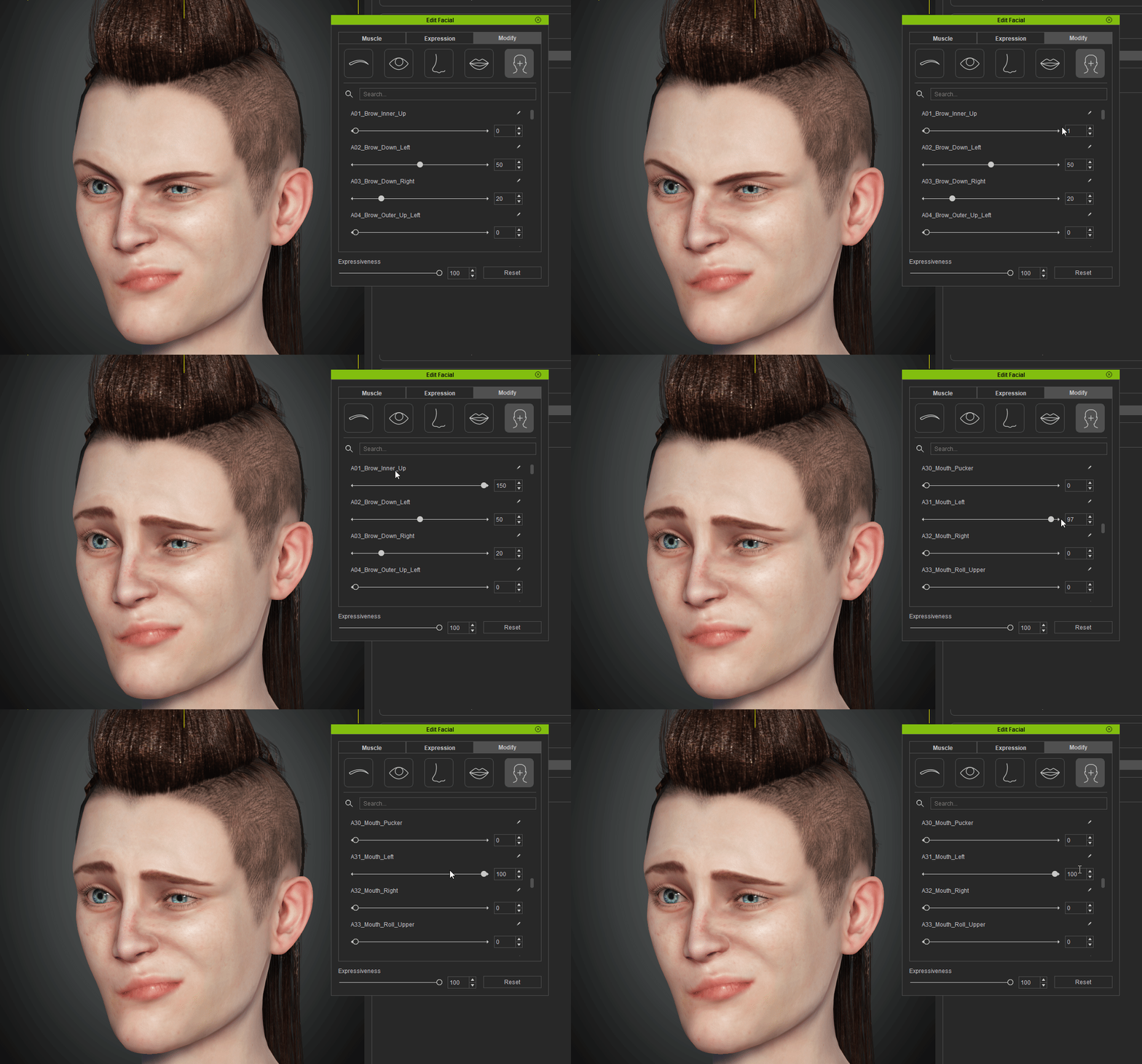
Hair and scalp mesh intersection can occur when ExPlus expressions are deployed.

Workaround: In order to conform the hair and scalp to the expressions, turn the hair and scalp into "Full Beard" in Character Creator, or allow the it to Auto-Conform to the head mesh.

The final remedied result:
|
|
By sub figura - 5 Years Ago
|
|
How to export character with blendshapes to ARkit?
|
|
By Angel Alonso - 5 Years Ago
|
Eric C (RL) VERY VERY GREAT!!!!!
Very usefull addon. I love it!
|
|